Feature map
This page is the screenshot-backed feature map and release matrix for the current Cress product surface.
It tracks the user-visible Cress features and points to the screenshots and guides that document them.
Important
Treat this page as a release-facing inventory. Every feature change should update this matrix and, when the UI changes materially, refresh or add the matching screenshot under docs\images\.
Studio and Studio Web feature map
| Area | Feature | What it enables | Screenshot | Guide |
|---|---|---|---|---|
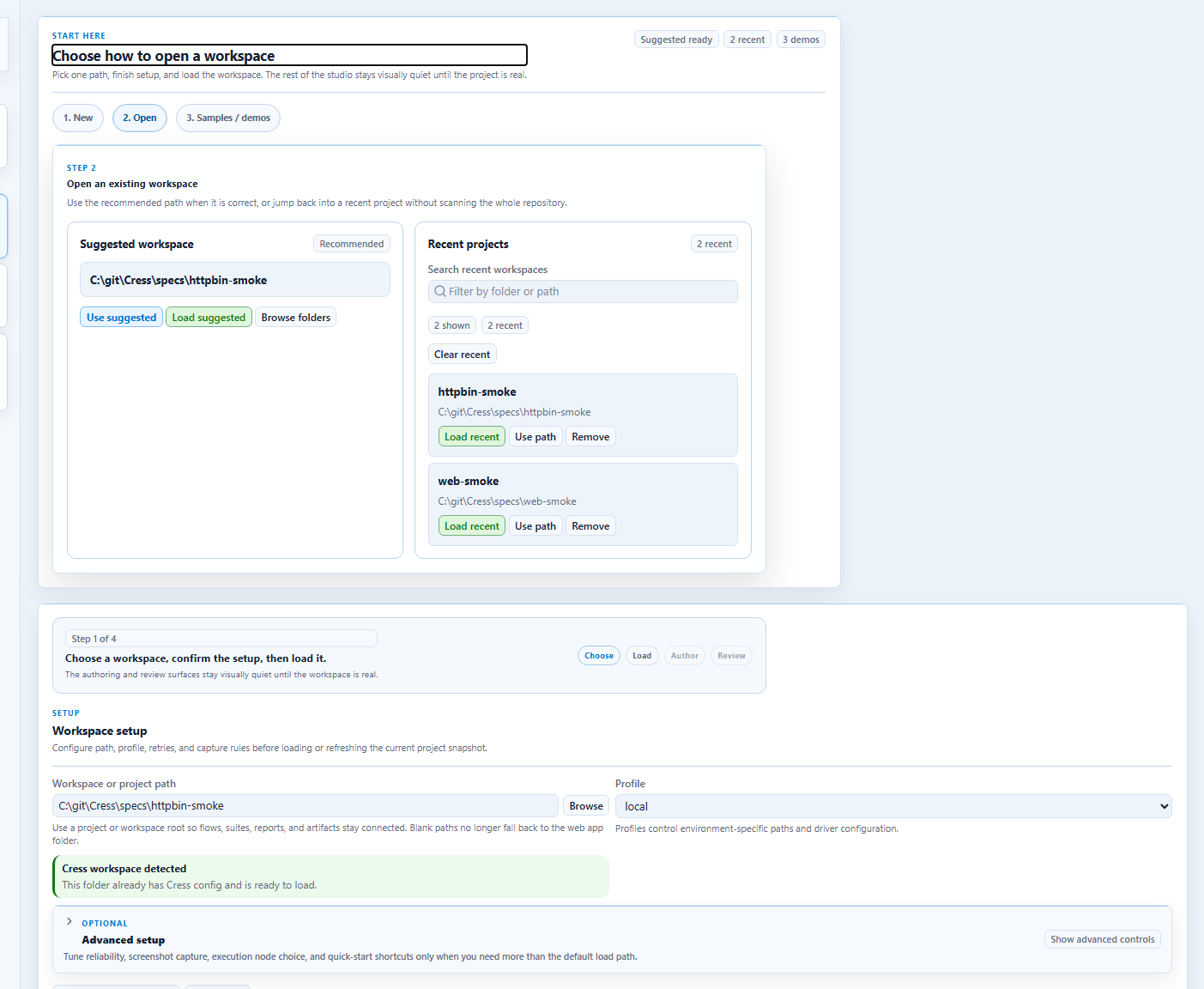
| Onboarding | Landing page and workspace startup | Start from a compact workspace-first landing surface at /, then choose a single startup path: New, Open, or Samples / demos. Suggested and recent projects are integrated into Open, while sample discovery stays isolated from the normal project-opening path. Use /workspace when you want to jump directly into setup. |
 |
Studio overview |
| Workspace loading | Advanced setup disclosure | Keep retry, screenshot, execution-node, and quick-start controls available without forcing them into the default setup scan path. | 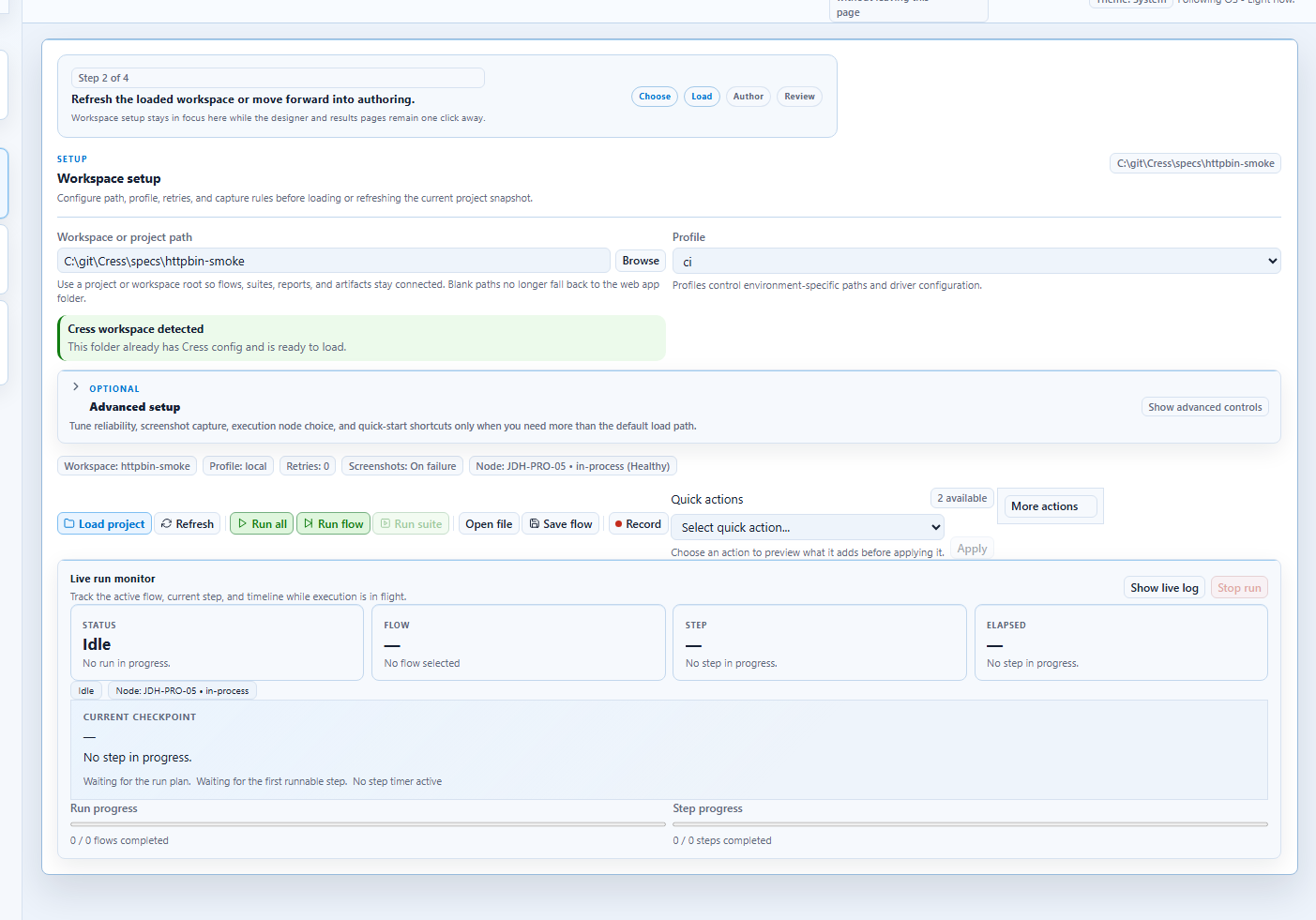 |
Studio overview |
| Navigation | Sidebar page split | Use the left sidebar as real page navigation after load so workspace setup, authoring, and results review each get their own focused surface instead of sharing one long page. | |
Studio overview |
| Onboarding | Built-in demo, recent-history, and node discovery | Expand the optional setup panels when you need them to filter demos, manage recent workspaces in-place, or scan runner readiness before you commit to a workspace path. | |
Studio overview |
| Workspace loading | Loaded project shell | Shows the loaded workspace with clearer setup, explorer, designer, and results framing, a one-glance setup summary, stronger empty-state treatments when panels are waiting for input, path readiness feedback, the scan-friendly status bar, the explicit theme readout, and the main authoring and execution tabs. | |
Studio overview |
| Workspace loading | Workspace picker | Browse the machine, filter folders, and select or load a workspace from the in-app picker instead of typing long paths from memory. | 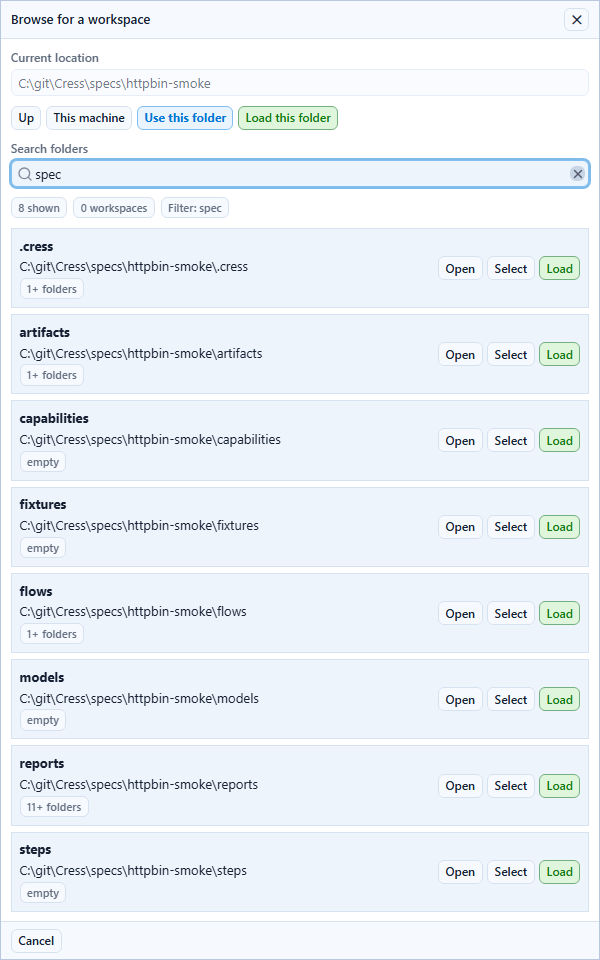 |
Studio overview |
| Authoring | Flow designer | Edit fixtures, actions, expectations, and visual flow structure from the main designer surface, with grouped quick actions that preview what each authoring shortcut adds before applying it. | 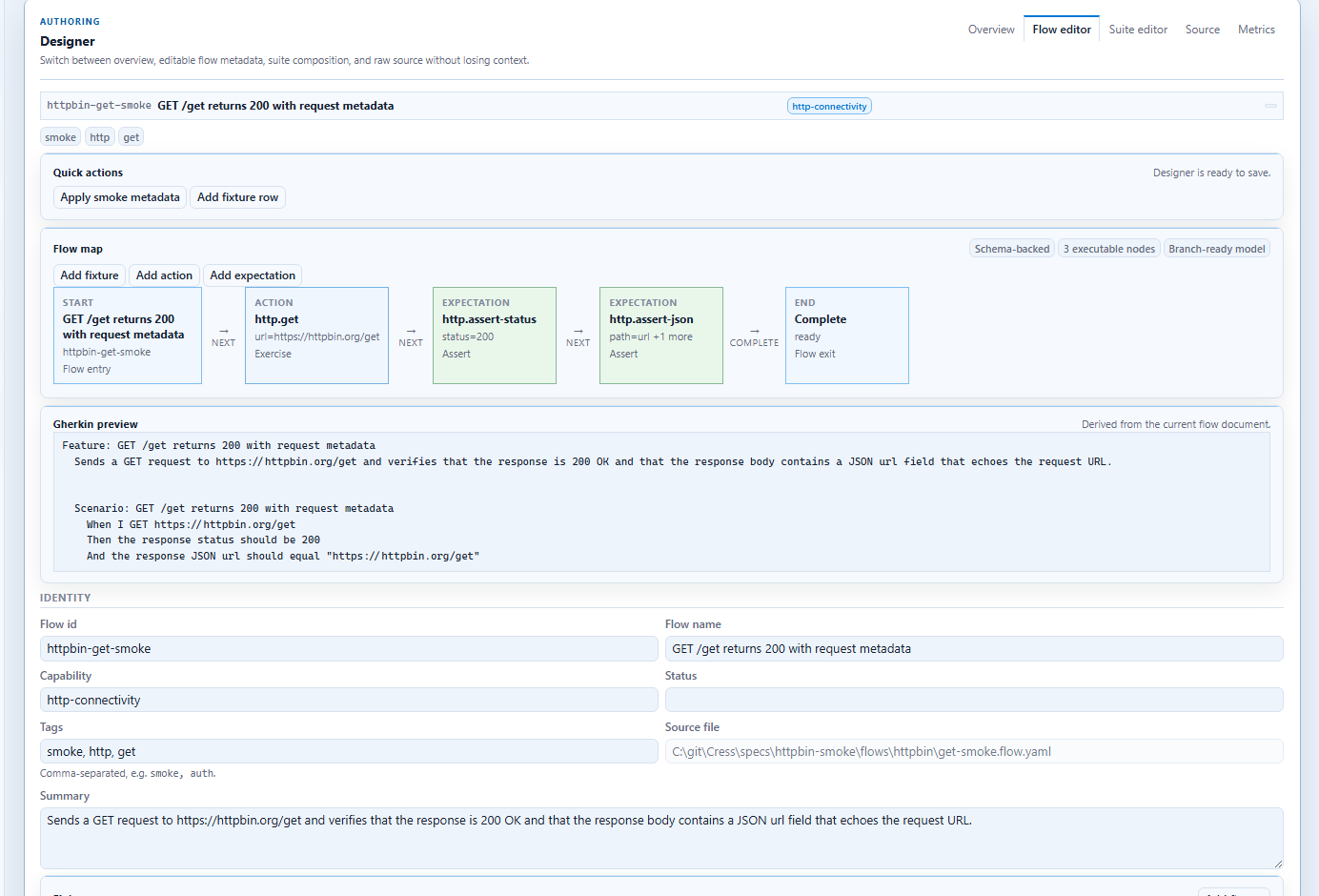 |
Authoring flows |
| Authoring | Source editor | Normalize generated flows into durable YAML with capabilities, tags, and stable locators. | 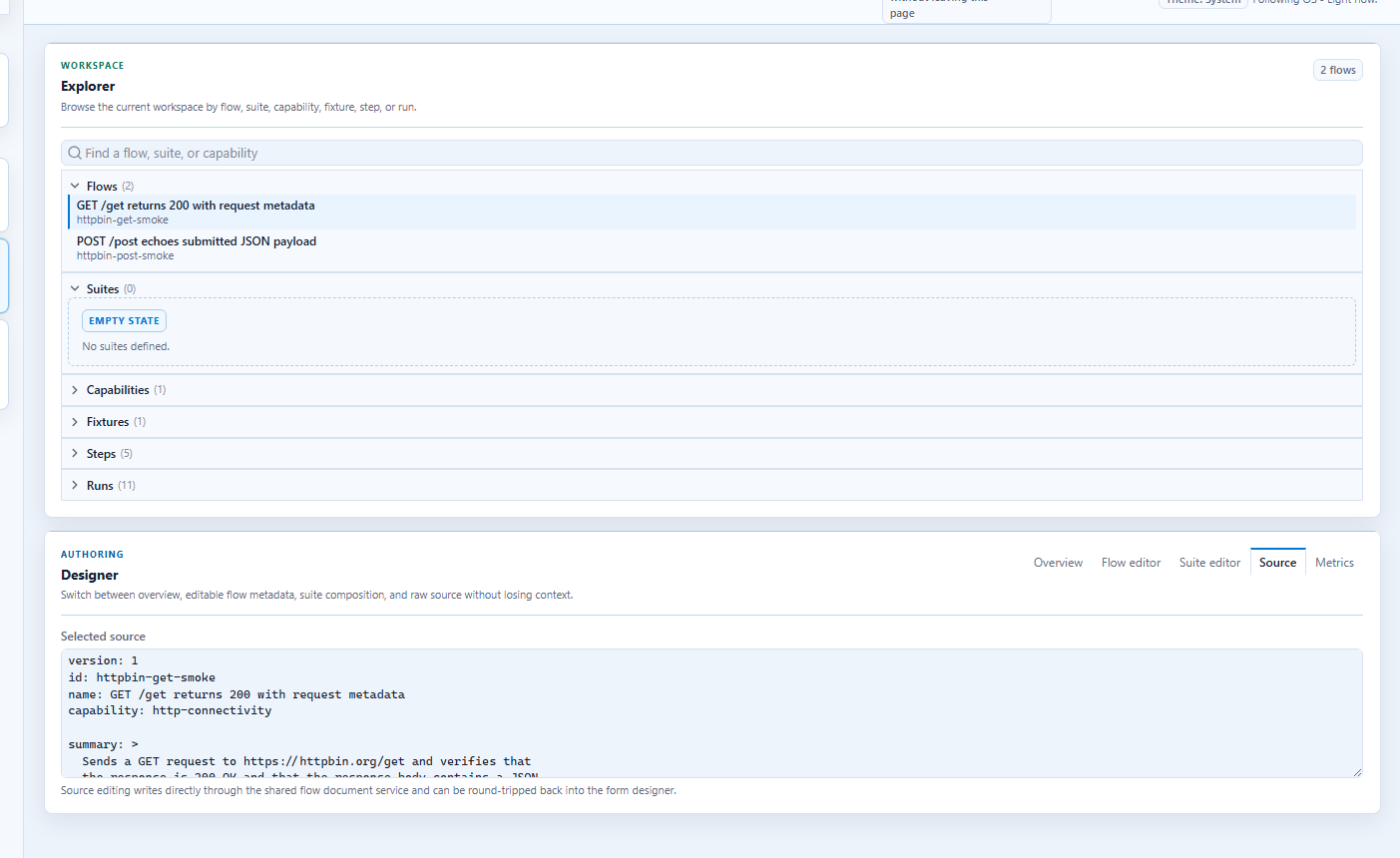 |
Studio overview |
| Recording | Web recording picker | Capture browser flows and then save/replay the inferred steps back into the workspace, with visible URL validation and quick-start presets for common targets. | 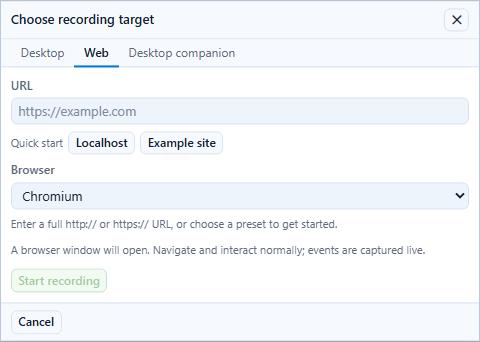 |
Recording workflows |
| Recording | Desktop recording picker | Attach to a Windows app and capture desktop interactions into a reusable flow, with process search and an attachable-only view for faster target selection. | 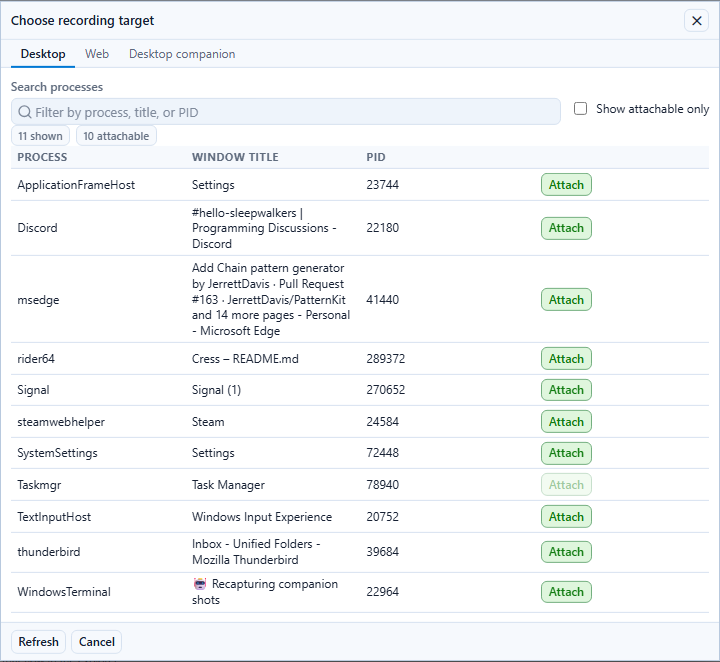 |
Recording workflows |
| Recording | Desktop companion pairing | Pair the optional Windows companion with Studio Web so you can start companion-backed desktop sessions, monitor them from the browser, and keep the native manager close to the target app. | 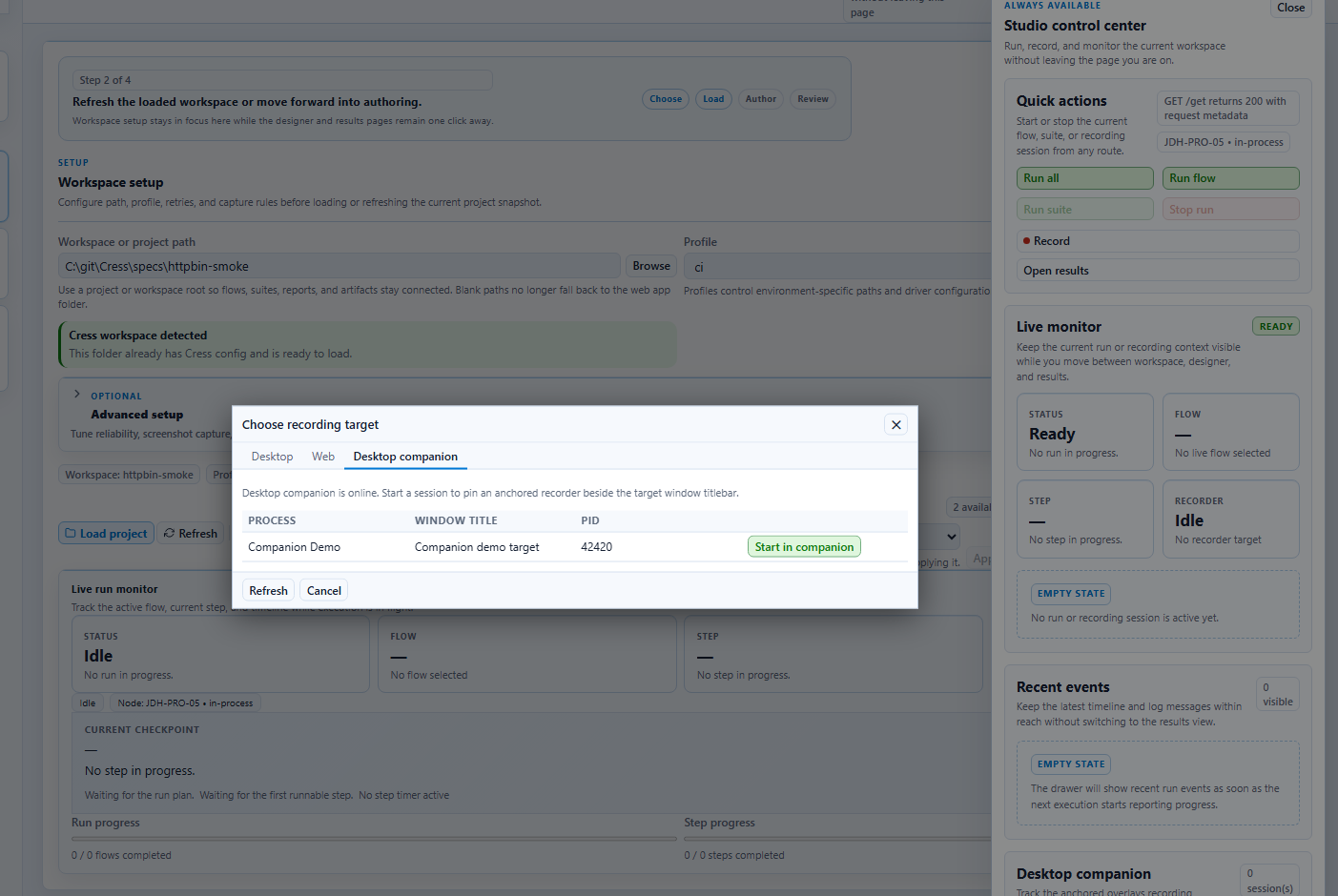 |
Desktop companion |
| Execution review | Results panel | Review screenshots, traces, reports, step outcomes, and rerun-focused evidence after execution, with run filtering, failed-only triage, and artifact type filters to find the right evidence faster. | 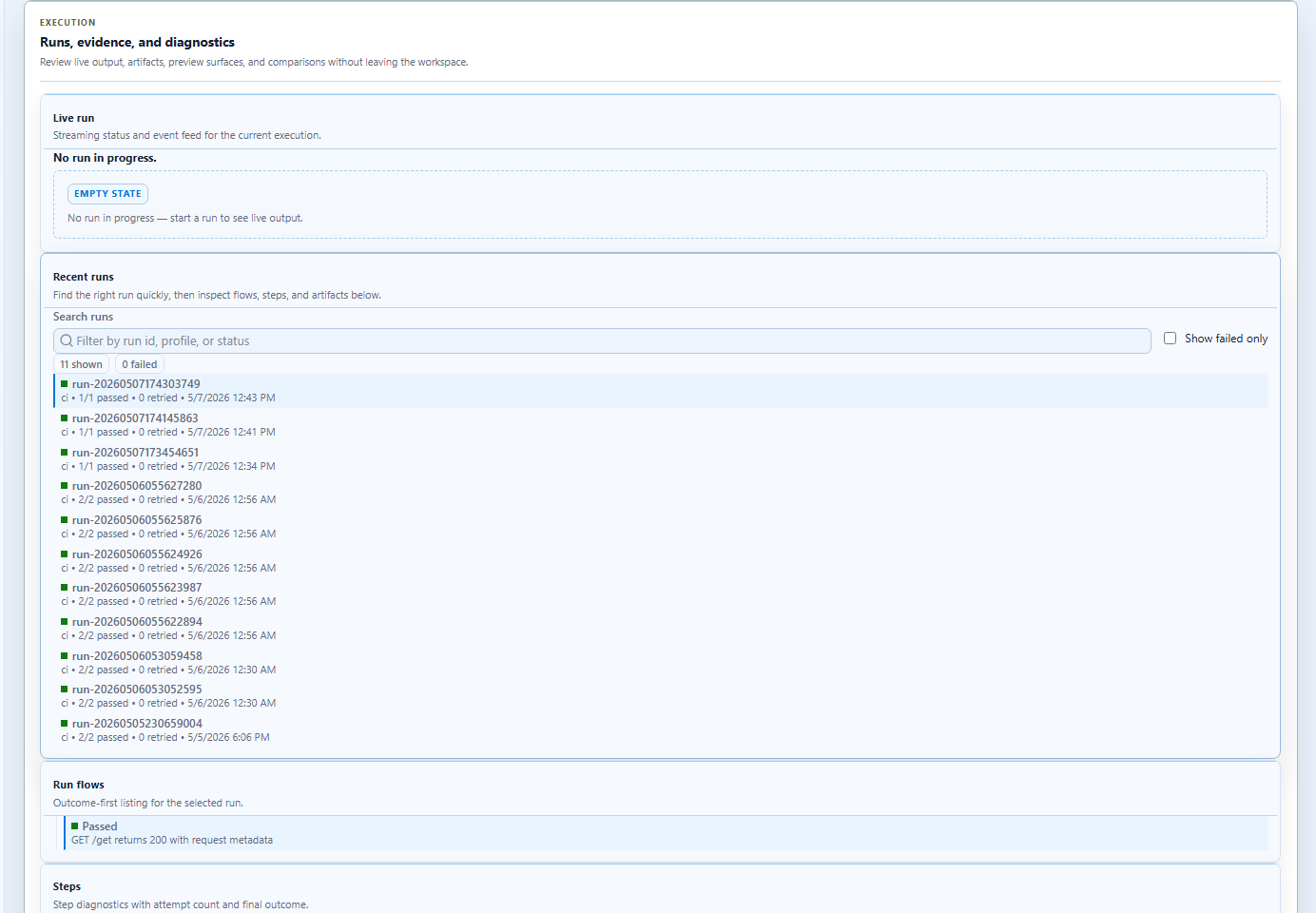 |
Running and debugging |
| Health and quality | Metrics tab | Inspect flakiness, repeated failures, and capability-level coverage trends with an explicit heatmap legend plus filtered run insights for faster flake triage. | 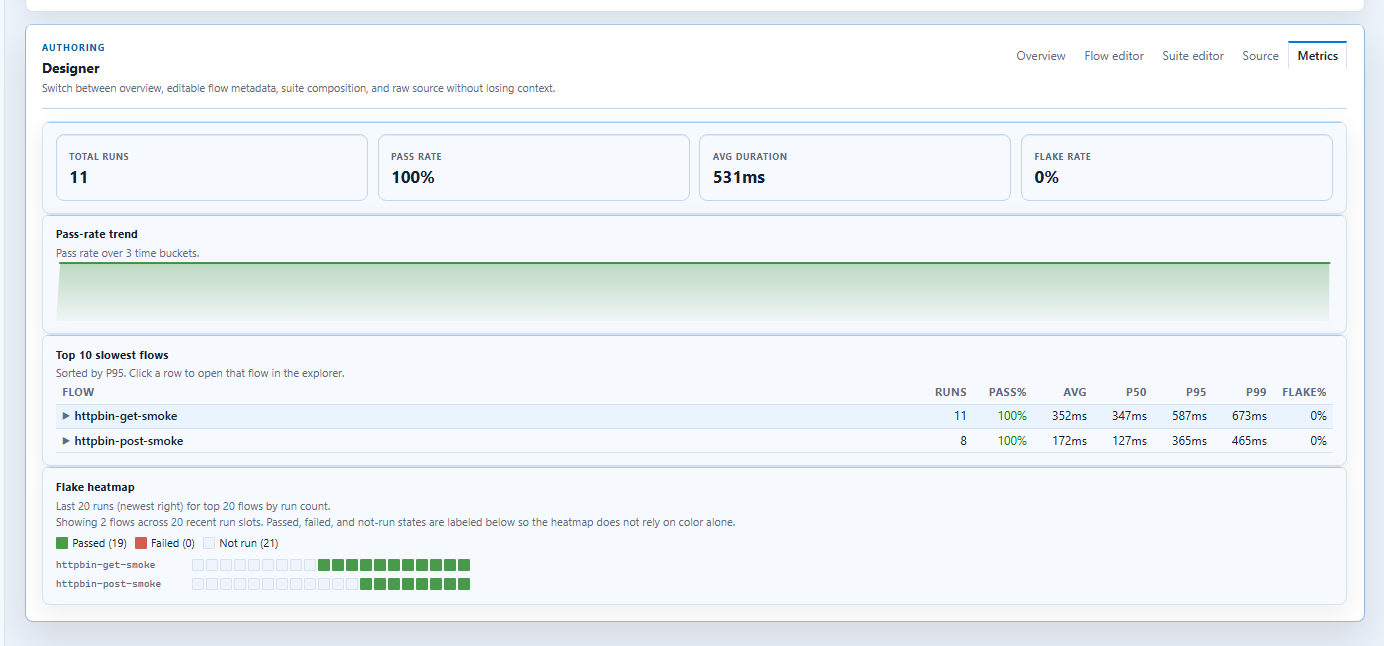 |
Studio overview |
Legacy desktop Studio screenshot matrix
These screenshots are still part of the repository documentation set and should be kept aligned anywhere the legacy desktop shell is referenced.
| Area | Feature | What it enables | Screenshot | Guide |
|---|---|---|---|---|
| Explorer and selection | Flow selection | Select a flow and inspect the currently loaded authoring context in the desktop shell. | 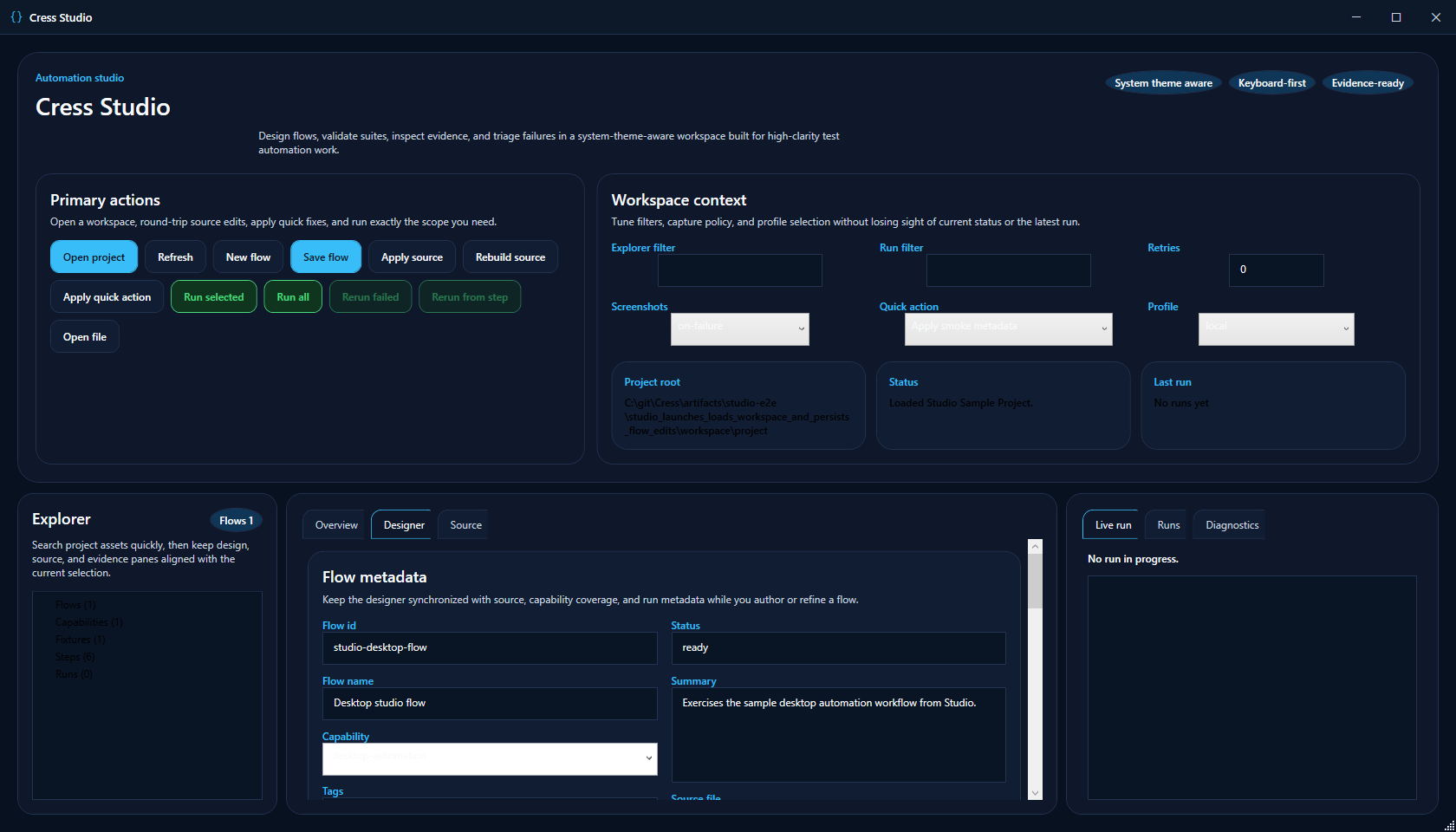 |
Studio overview |
| Authoring | Designer surface | Edit and refine the visual designer state in the desktop shell. | 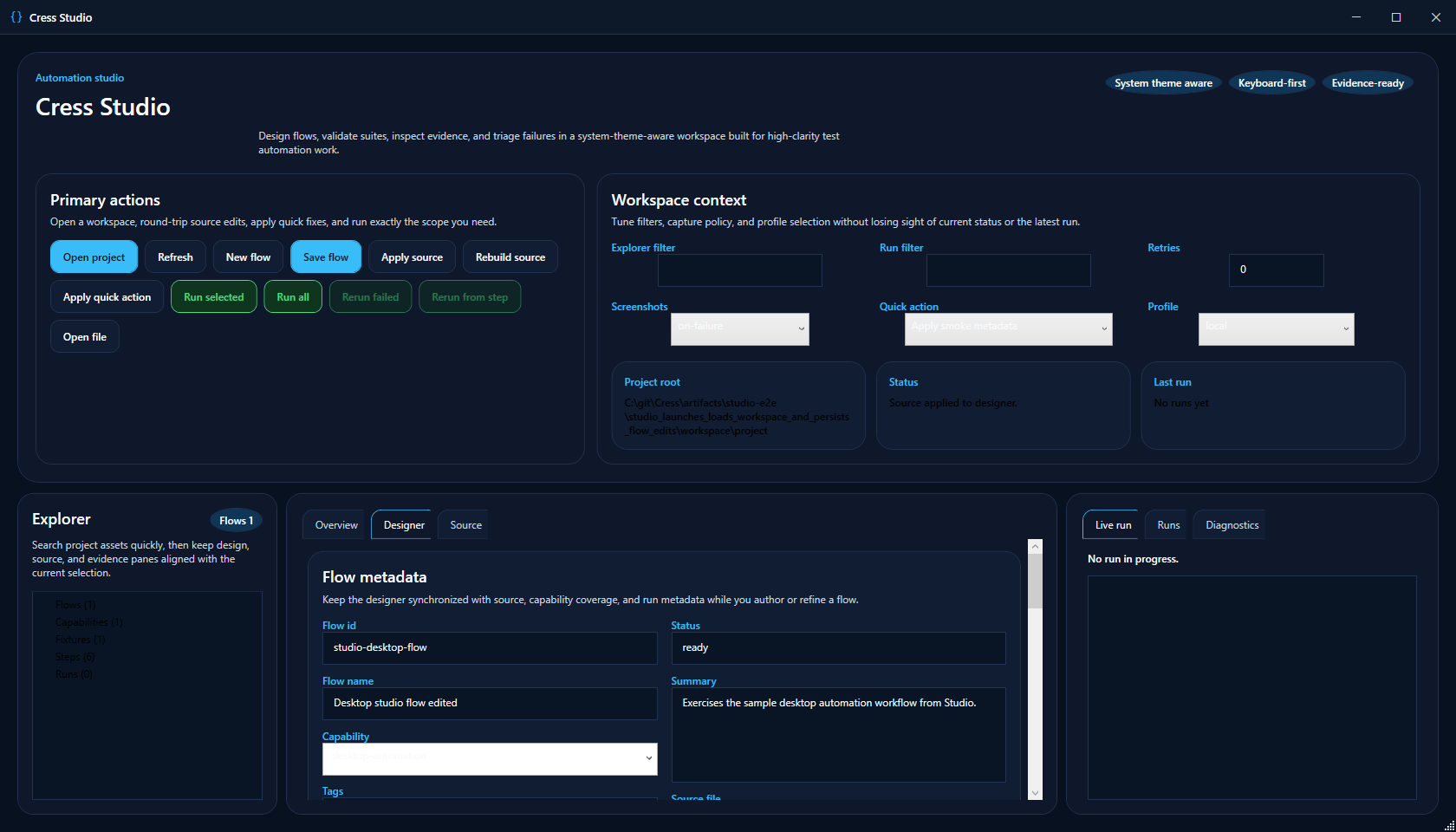 |
Authoring flows |
| Authoring | Source editing | Make durable YAML edits directly from the desktop source editor. | 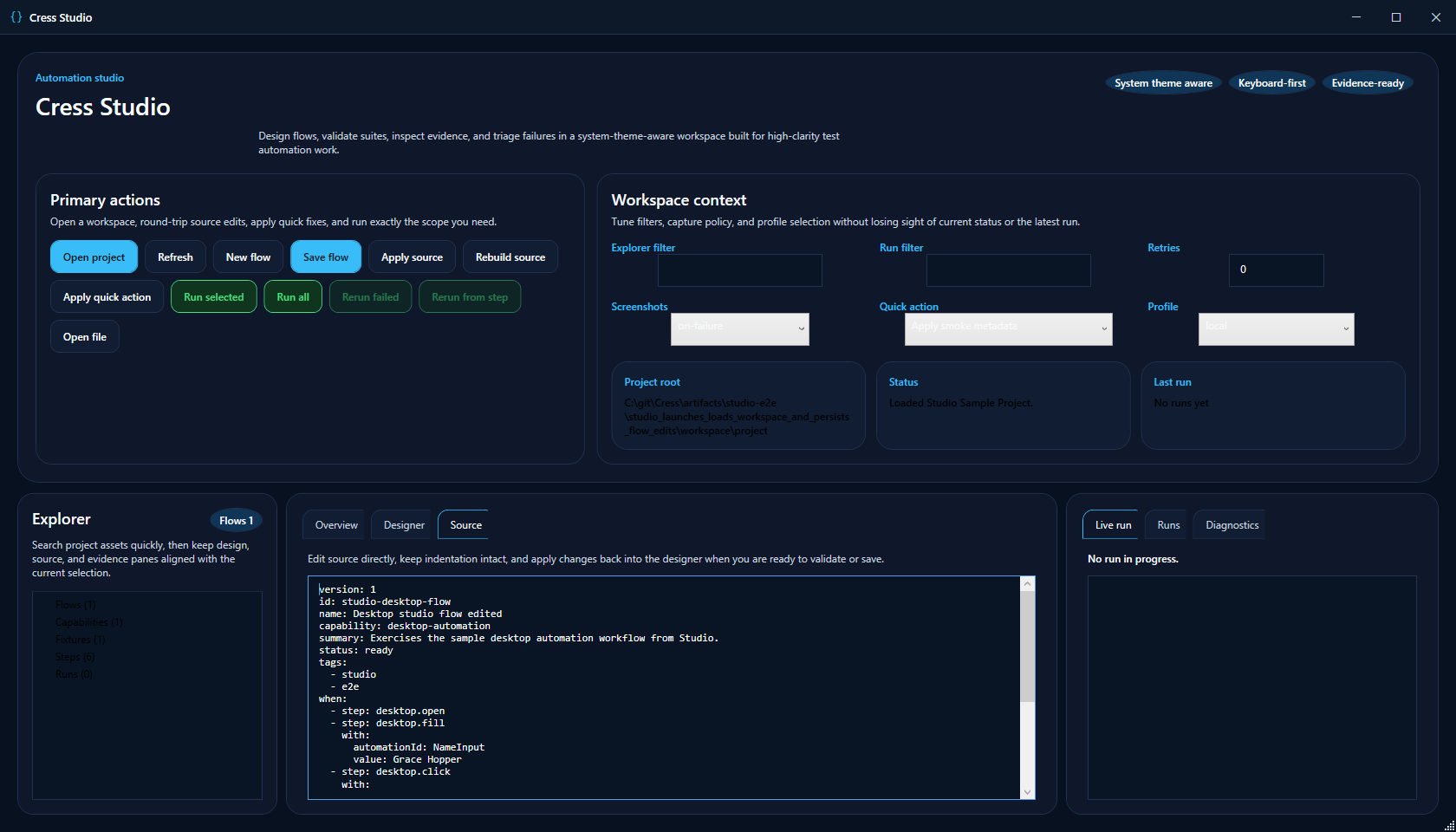 |
Authoring flows |
| Execution review | Run completed state | Confirm the desktop shell has completed the run and returned evidence-rich status. | 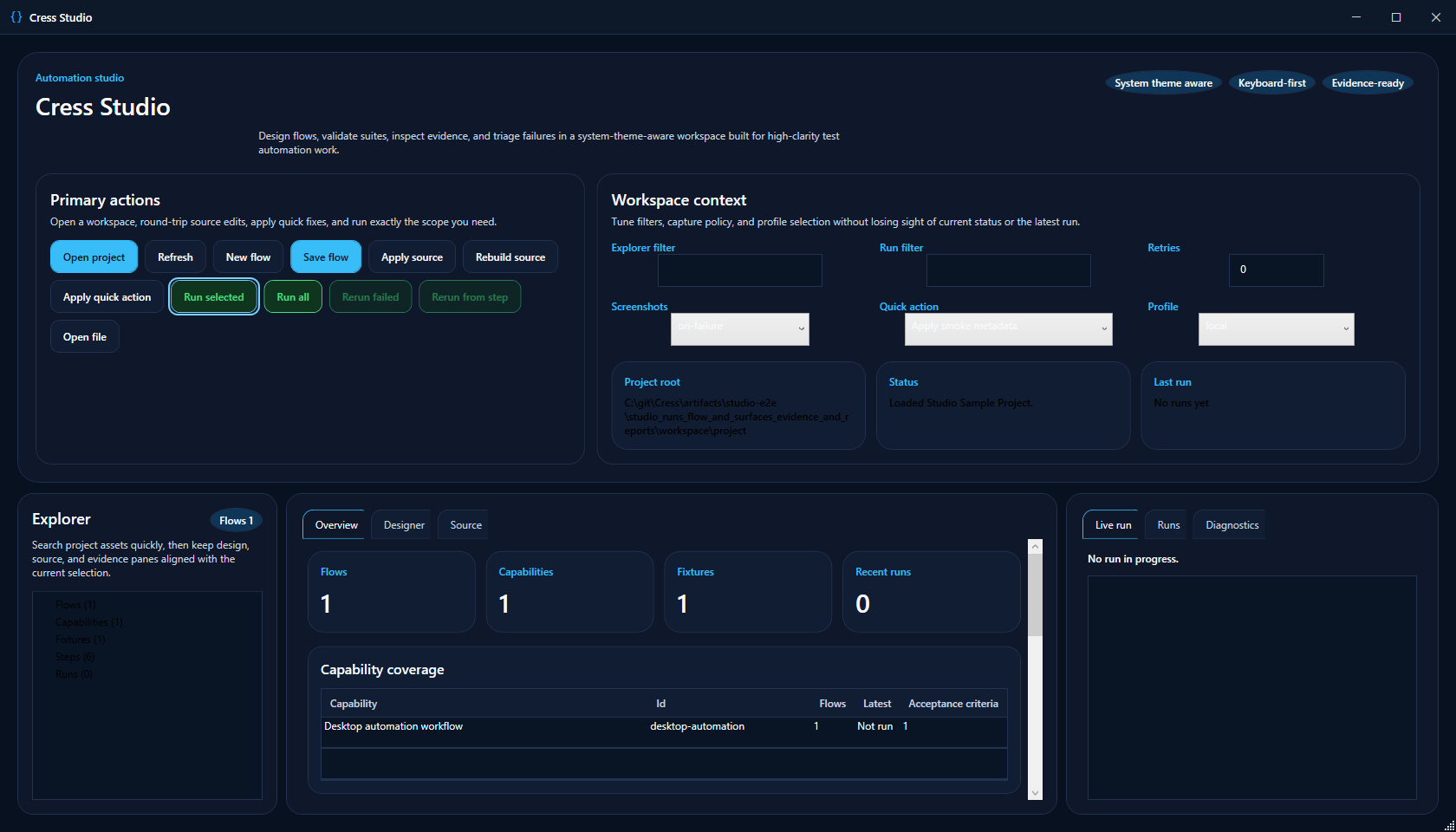 |
Running and debugging |
| Execution review | Report preview | Preview generated reports inside the desktop shell after execution. | 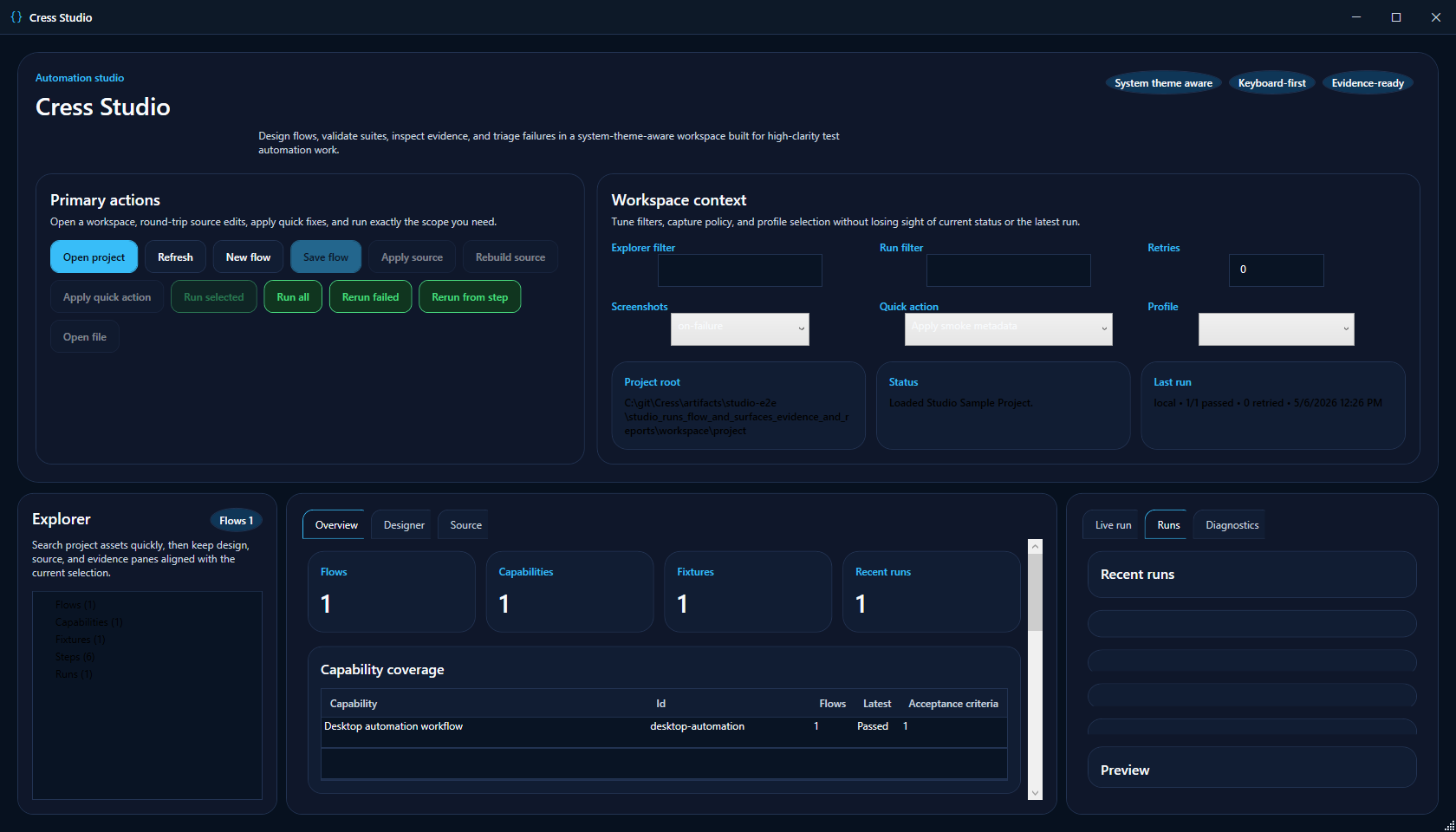 |
Running and debugging |
Non-visual product surfaces
These features do not have a primary screenshot-driven surface, but they still belong in the product inventory and should be kept current here.
| Surface | Feature | What it enables | Guide |
|---|---|---|---|
| CLI | Project bootstrap, validation, execution, reporting, and docs generation | Use cress in local dev and CI for setup, validation, run orchestration, diagnostics, and report generation. |
CLI reference |
| Studio distribution | Wrapped Windows shell | Launch the same Studio Web experience in a Discord-style desktop shell backed by the local packaged Studio host. | Studio overview |
| Studio distribution | Browser-hosted Windows shell | Launch the packaged Studio service in your default browser while a lightweight local host window keeps the session alive. | Studio overview |
| Studio distribution | MSI, portable zip, and cress-studio tool |
Install Studio through Start Menu shortcuts, run it portably, or launch it through a Windows dotnet tool without building from source. | Studio overview |
| HTTP driver | Service and API automation | Run service smoke flows with request/response assertions and evidence capture. | Testing services |
| Playwright-backed web automation | Browser automation | Execute browser flows with durable locators, screenshots, and mixed UI/API assertions. | Testing web apps |
| Flawright-backed desktop automation | Windows desktop automation | Launch or attach to desktop apps and capture screenshot-heavy evidence for desktop flows. | Testing desktop apps |
| Desktop companion | Anchored overlay recording and monitoring | Run the optional Windows companion to pin recording overlays near target app titlebars, manage multiple desktop sessions, and pair live session state back into Studio Web. | Desktop companion |
| Desktop companion | Windows installer and portable release assets | Install or distribute the companion through a proper MSI or a self-contained portable zip instead of building from source on every target machine. | Desktop companion |
| Living docs | Executable documentation output | Publish HTML living docs and evidence-backed summaries from real runs. | Running and debugging |
| Native test generation | xUnit, NUnit, and MSTest output | Generate framework-native C# tests that still execute through the Cress engine. | Framework integrations |
Maintenance rule for new features
When a feature is added, removed, renamed, or materially reshaped:
- update or add the row on this page
- update the linked user/developer guide
- refresh the screenshot asset if the UI changed
- keep the screenshot filename stable unless the screen itself has been replaced
For screenshot refresh workflow details, see Docs and CI.