Desktop companion
The desktop companion is the Windows-side control surface for anchored desktop recording. It stays close to the app you are capturing while Studio Web remains the long-form workspace for authoring, diagnostics, and results.
What it is for
Use the desktop companion when you need to:
- attach to one or more Windows apps without leaving the desktop
- keep a lightweight overlay near the target window titlebar while you record
- pause, resume, or stop desktop sessions from a taskbar-visible manager
- surface those same live sessions back into Studio Web for review and authoring
Requirements
- Windows 10 or later
- one of these install paths:
- the companion MSI installer from a GitHub Release
- the companion portable zip from a GitHub Release
- a local repo build if you are developing Cress from source
- Studio Web or the Aspire AppHost if you want the browser pairing workflow
Install paths
Option 1: MSI installer (recommended)
Download the Cress.DesktopCompanion.Setup-<version>.msi asset from the matching GitHub Release and run it normally, or install it silently:
msiexec /i Cress.DesktopCompanion.Setup-1.2.3.msi /quiet
The MSI installs the companion for the machine, creates a Start Menu shortcut, and registers the app for normal Windows uninstall/upgrade behavior.
Option 2: Portable zip
Download the Cress.DesktopCompanion-win-x64-<version>.zip release asset, extract it to a stable folder, and launch Cress.Companion.Windows.exe.
Option 3: Build from source
From the repo root:
powershell -ExecutionPolicy Bypass -File scripts\Publish-CompanionInstaller.ps1 -Version 0.1.0-local
That creates:
- a self-contained Windows x64 portable zip under
artifacts\packages\ - an MSI installer under
installer\Cress.Companion.Installer\bin\Release\
If you only need a source-run build during development:
dotnet run --project src\Cress.Companion.Windows\Cress.Companion.Windows.csproj --configuration Release
First launch
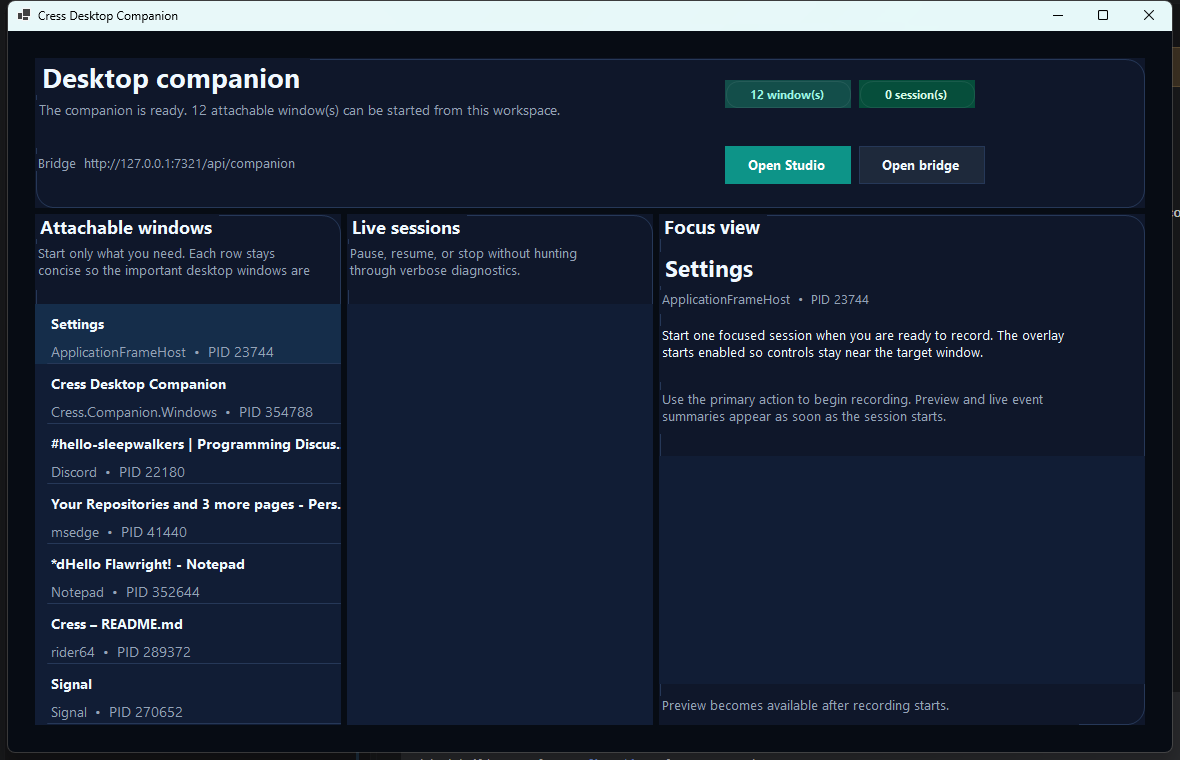
When the companion starts, it launches three things together:
- a manager window for multi-app control
- a tray/taskbar presence so it stays reachable even when hidden
- a local bridge on
http://127.0.0.1:7321that Studio Web can query
Pair it with Studio Web
- Start the companion.
- Open Studio Web.
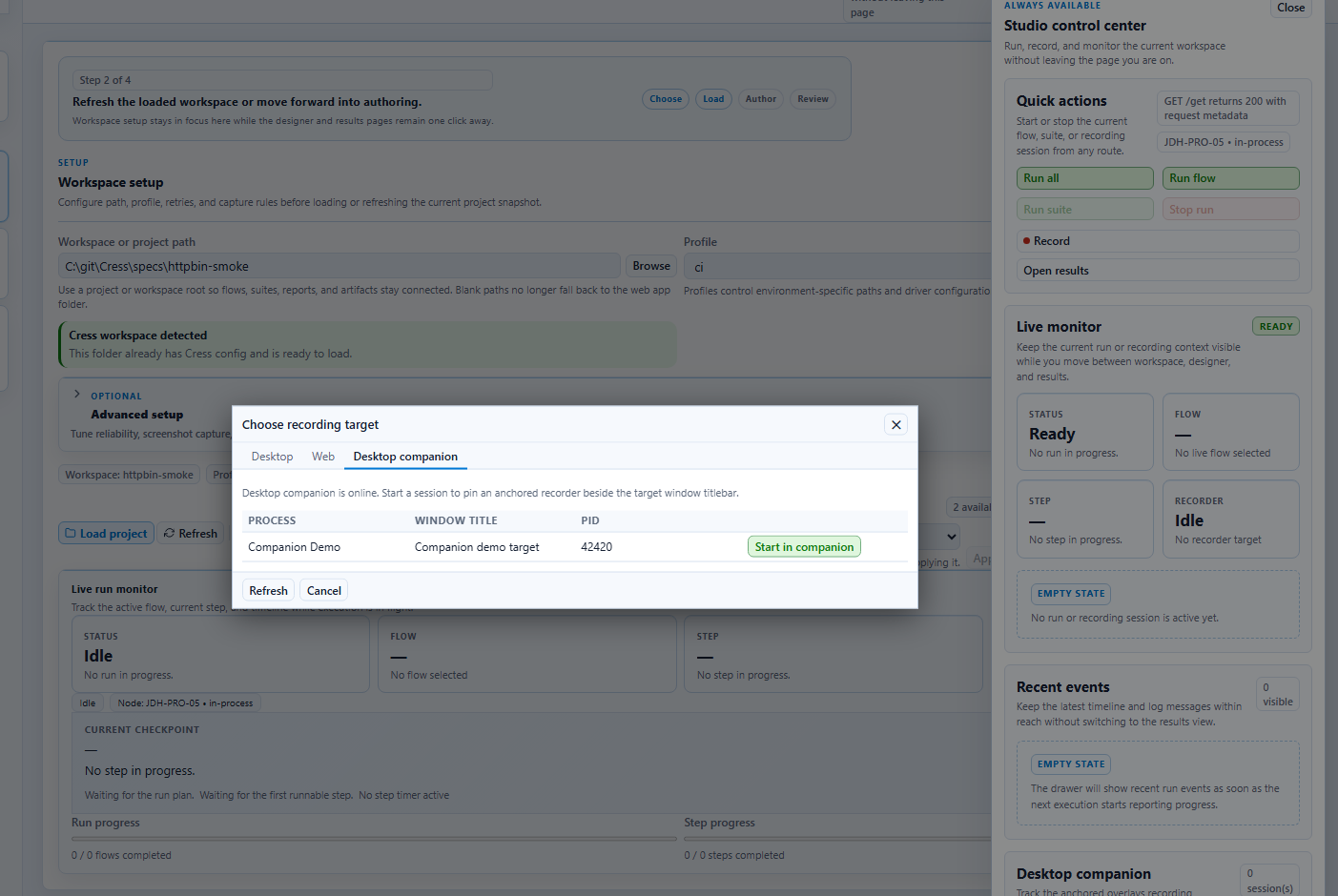
- Open the recording workflow from the global controls drawer.
- Switch to Desktop companion.
- Confirm the companion status reports as available.
- Start a session from one of the attachable windows reported by the companion.
When the bridge is reachable, Studio shows companion targets and live sessions directly in the picker.
Record a desktop app step by step
- Launch the Windows app you want to capture.
- Start the desktop companion.
- In the manager, confirm the app appears under Attachable windows.
- Start the session from Studio Web or the companion manager.
- Interact with the target app.
- Use the companion overlay or manager to pause, resume, or stop the session.
- Return to Studio Web to review the inferred steps and save the resulting flow.
The manager keeps the current target or live session in a dedicated Focus view so the latest preview, actions, and bridge details stay readable without forcing the rest of the window into diagnostic overload.
Use the control center for cross-route monitoring
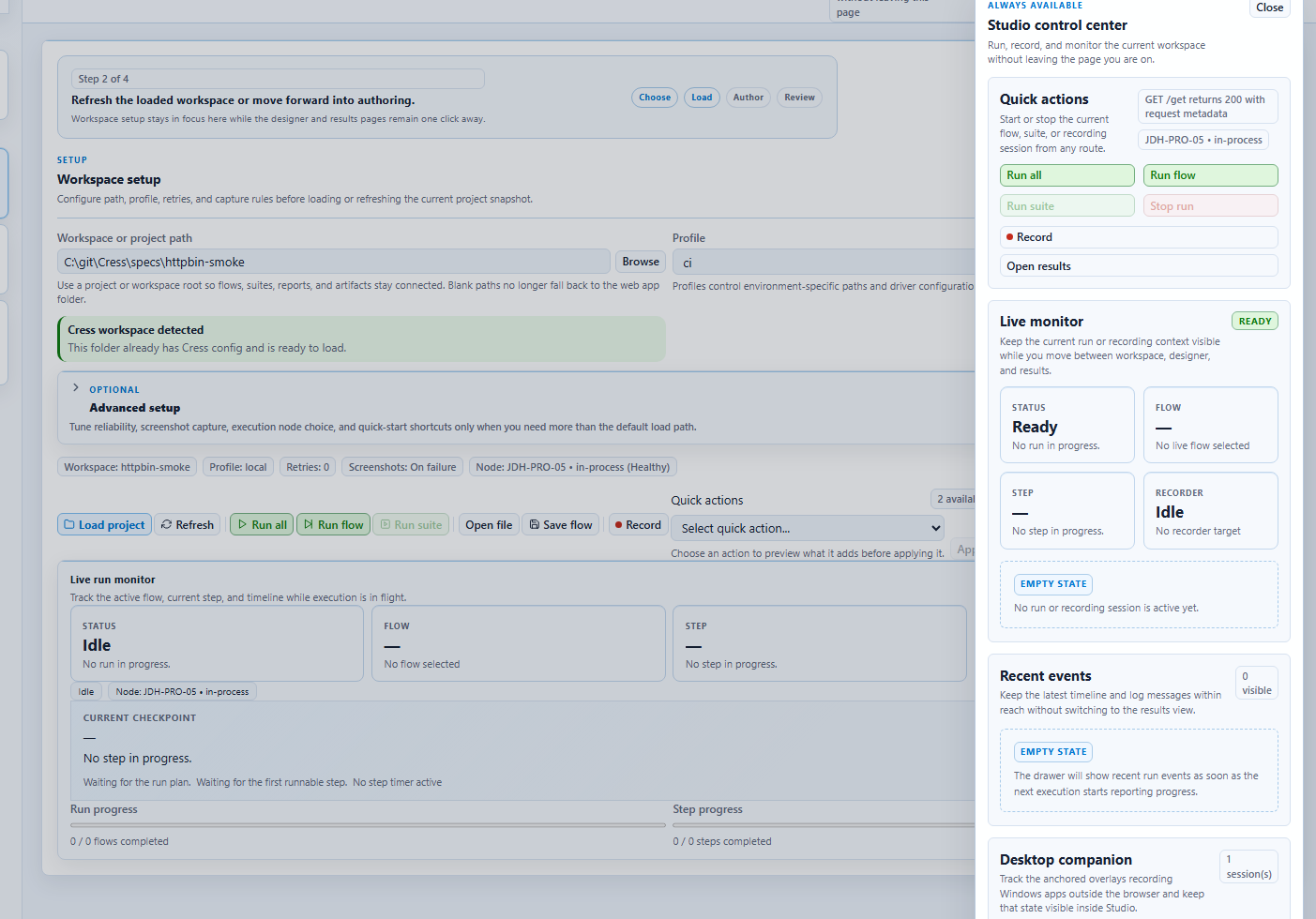
Once the companion is paired, Studio Web keeps the current companion status visible in the always-available control center. That gives you a browser-side summary even while the native companion stays attached to the desktop app.
Daily operating model
Manager
Use the manager when you want to:
- scan the current attachable windows
- start a recording without switching back to the browser
- keep a readable focus view on the current target or session
- keep the bridge reachable from the tray even if the main window is minimized
Overlay
Use the overlay when you want the controls nearest to the target app. It is the best fit for quick pause/resume/stop actions while you are actively driving the desktop UI.
Studio Web
Use Studio Web when you want to:
- open the companion picker and start a session from the browser
- keep live session state visible while moving between workspace, designer, and results
- review inferred steps, diagnostics, screenshots, and saved flows after the recording phase ends
Features at a glance
| Feature | What it gives you |
|---|---|
| Multi-app session manager | Track more than one attached desktop session from one place |
| Anchored overlay widgets | Keep lightweight controls near the target window instead of switching back to Studio |
| Local HTTP bridge | Lets Studio Web discover targets and monitor sessions without embedding desktop code into the browser shell |
| Start Menu + MSI install path | Install, upgrade, and remove the companion through normal Windows software management paths |
| Portable zip release | Run the companion without installer state when you need a drop-in build for lab or test environments |
| Pause / resume / stop | Control live desktop sessions from the manager, overlay, or Studio picker |
| Studio-aware monitoring | Mirror companion state in the Studio recording picker and control center |
Update and uninstall
Upgrade
- If you installed through the MSI, run the newer MSI and Windows Installer will replace the older version.
- If you use the portable zip, replace the extracted folder with the newer release asset.
Uninstall
- MSI install: remove Cress Desktop Companion from Installed apps in Windows, or run:
msiexec /x Cress.DesktopCompanion.Setup-1.2.3.msi
- Portable zip: delete the extracted folder.
Troubleshooting
Studio says the companion is unavailable
Make sure the Windows companion is running and that http://127.0.0.1:7321/health responds locally.
The target app does not appear in the companion list
The companion only lists processes with a visible main window. Launch the app fully first, then refresh the target list.
A target is listed but not attachable
That usually means Windows denied access to the process metadata. Start Studio and the companion with the same elevation level as the target app.
The installer succeeded but Studio still cannot connect
The installer only places the app on disk; it does not auto-start Studio Web. Launch the companion, then start Studio or the AppHost normally.
I need a repeatable local release build
Use the repo packaging script:
powershell -ExecutionPolicy Bypass -File scripts\Publish-CompanionInstaller.ps1 -Version 0.1.0-local