Tools
JD.AI provides 19 categories of built-in tools that the AI agent invokes automatically during conversations. You don't call tools directly — describe what you want in natural language and JD.AI selects the right tool. Each tool call is confirmed before execution unless you've enabled auto-run.
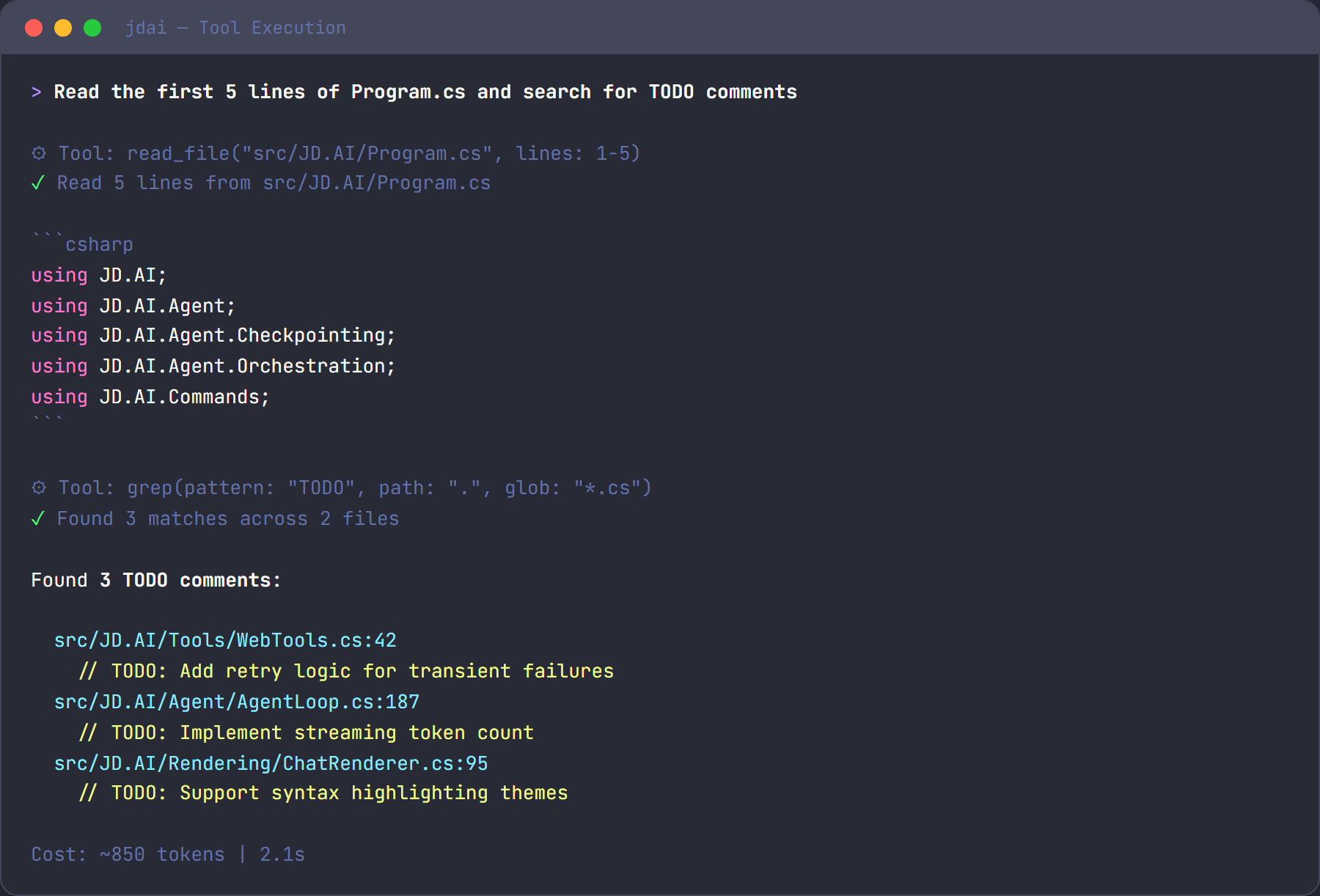
For full parameter documentation, see the Tools Reference.
Tool categories at a glance
| Category | Tools | What it does |
|---|---|---|
| File | read_file, write_file, edit_file, list_directory |
Read, write, and browse files |
| Search | grep, glob |
Find text in files and locate files by pattern |
| Shell | run_command |
Execute shell commands |
| Git | git_status, git_diff, git_log, git_commit, git_push, git_pull, git_branch, git_checkout, git_stash |
Full git workflow |
| Web | web_fetch |
Fetch a URL and return readable text |
| Web Search | web_search |
Search the web for current information |
| Memory | memory_store, memory_search, memory_forget |
Semantic memory for cross-turn recall |
| Subagent | spawn_agent, spawn_team, query_team_context |
Delegate work to specialized agents |
| Think | think |
Scratchpad for reasoning — no side effects |
| Environment | get_environment |
System info: OS, runtime, disk space, tooling |
| Tasks | create_task, list_tasks, update_task, complete_task, export_tasks |
Track work items |
| Code Execution | execute_code |
Run snippets in C#, Python, Node.js, Bash, or PowerShell |
| Clipboard | read_clipboard, write_clipboard |
Read from and write to the system clipboard |
| Questions | ask_questions |
Present structured questionnaires to you |
| Diff / Patch | create_patch, apply_patch |
Create and apply unified diffs atomically |
| Batch Edit | batch_edit_files |
Multi-file text replacements in one atomic operation |
| Usage | get_usage, reset_usage |
Token counts and cost estimates |
| Encoding & Crypto | encode_base64, decode_base64, encode_url, decode_url, decode_jwt, hash_compute, generate_guid |
Encoding, decoding, hashing, and cryptographic utilities |
| Tailscale | tailscale_status, tailscale_machines, tailscale_configure, tailscale_runner_probe, tailscale_export |
Tailscale Tailnet discovery and remote orchestration |
File tools
Read, create, and edit files. The agent reads files to understand your code and writes files to make changes.
> read the first 20 lines of Program.cs
⚡ Tool: read_file(path: "Program.cs", startLine: 1, endLine: 20)
edit_file replaces exactly one occurrence of a string — surgical, minimal edits rather than full rewrites.
Search tools
Find text across your codebase with grep (regex search) or locate files with glob (pattern matching).
> find all files that reference ILogger
⚡ Tool: grep(pattern: "ILogger", glob: "**/*.cs")
Shell tools
Execute any shell command. The agent uses this for builds, tests, linting, and anything else that needs the terminal.
> run the tests
⚡ Tool: run_command(command: "dotnet test", timeoutSeconds: 120)
Git tools
A full git workflow — status, diff, log, commit, push, pull, branch, checkout, and stash. The agent drafts commit messages based on your changes and stages everything before committing.
> commit my changes with a descriptive message
⚡ Tool: git_commit(message: "feat: add input validation to registration form")
Web tools
Fetch any URL and get back readable text, or search the web for current information.
> search for the latest .NET 9 breaking changes
⚡ Tool: web_search(query: ".NET 9 breaking changes", count: 5)
Memory tools
Store and recall facts across the conversation using semantic memory. Useful for remembering architectural decisions, API patterns, or any context you want to persist.
> remember that the API key is stored in Azure Key Vault
⚡ Tool: memory_store(text: "API key is stored in Azure Key Vault", category: "architecture")
Subagent tools
Delegate focused work to specialized subagents that run in their own context window. This keeps your main conversation clean while offloading research, code review, or command execution.
| Agent type | Best for |
|---|---|
explore |
Codebase research — read-only, no context cost |
task |
Running commands and reporting results |
plan |
Creating structured implementation plans |
review |
Code review with actionable feedback |
general |
Complex multi-step work |
Think tool
A scratchpad the agent uses to reason through problems before acting. No side effects — it simply records a thought and moves on. You'll see these in the tool call stream as the agent plans its approach.
Environment tools
Returns system information — OS, architecture, runtime version, disk space, and installed tooling. Helps the agent write platform-appropriate commands.
Task tools
Track work items within a session. The agent can create tasks, mark them in progress or done, and export the full list as JSON.
Code execution tools
Run code snippets directly — supports C#, Python, Node.js, Bash, and PowerShell. Useful for quick validation, testing a regex, or running a one-off calculation.
> test this regex in python
⚡ Tool: execute_code(language: "python", code: "import re; print(re.findall(r'\\d+', 'abc 123 def 456'))")
Clipboard tools
Read from and write to the system clipboard. Cross-platform: uses PowerShell/clip on Windows, pbcopy/pbpaste on macOS, and xclip/xsel on Linux.
Encoding & Crypto tools
Encode, decode, hash, and inspect common developer data formats without leaving JD.AI.
> encode this string to base64
⚡ Tool: encode_base64(text: "Hello, World!")

> decode this JWT
⚡ Tool: decode_jwt(token: "eyJhbGciOiJSUzI1NiIsInR5cCI6IkpXVCJ9...")

> generate a new GUID
⚡ Tool: generate_guid(count: 1)
Warning
decode_jwt inspects token contents only — it does not verify the signature. Do not rely on it for authentication decisions.
MD5 and SHA1 are cryptographically weak. Prefer SHA256 or SHA512 for any security-sensitive hashing.
Tailscale Integration tools
Discover and orchestrate machines on your Tailscale Tailnet. Requires Tailscale CLI (tailscale) installed and authenticated, or API credentials configured via tailscale_configure.
> list all machines on my tailnet
⚡ Tool: tailscale_machines(filter: "online")

> check if the build server has a runner available
⚡ Tool: tailscale_runner_probe(target: "build-agent-01")

> export the machine list for automation
⚡ Tool: tailscale_export()
For security guidance and credential configuration, see the Tools Reference.
Tool loadouts
A Tool Loadout is a curated bundle of tools configured for a specific purpose. Instead of exposing every available tool to the agent (which increases token usage and can reduce tool-selection accuracy), a loadout defines exactly which tools are active.
JD.AI ships five built-in loadouts:
| Loadout | Tools included | Best for |
|---|---|---|
minimal |
Filesystem, Shell, think | Simple scripts or token-constrained models |
developer |
Minimal + Git, GitHub, Search, Analysis, Memory | Code writing and review |
research |
Minimal + Search, Web, Memory, Multimodal | Web research and document analysis |
devops |
Minimal + Git, Network, Scheduling | Infrastructure and deployment tasks |
full |
All tool categories | General-purpose work (default when no loadout is set) |
Loadouts are primarily a developer and integration feature. Subagents use them automatically — for example, explore subagents receive the research loadout, and task subagents receive the minimal loadout.
For developers building integrations, see Tool Loadouts (developer guide).
Every tool belongs to a safety tier that controls confirmation behavior:
| Tier | Behavior | Examples |
|---|---|---|
| Auto-approve | Runs without confirmation | read_file, grep, glob, git_status, think |
| Confirm once | Asks once per session | write_file, edit_file, git_commit, spawn_agent |
| Always confirm | Asks every invocation | run_command, web_search, execute_code |
Read-only tools run silently. Write operations ask once then auto-approve for the rest of the session. Shell commands and web searches always ask because they have the broadest potential impact.
Overriding confirmations
| Mechanism | Scope | Description |
|---|---|---|
/autorun |
Session | Toggle auto-approve for all tools |
/permissions |
Session | Disable all permission checks |
--dangerously-skip-permissions |
Process | CLI flag — no confirmations at all |
Warning
Disabling confirmations means the agent can write files, run commands, and commit code without asking. Use these overrides only in trusted, automated environments.
See also
- Commands — slash commands for managing tools and sessions
- Common Workflows — see tools in action
- Tools Reference — full parameter documentation
- Tool Loadouts (developer guide) — curated tool bundles for agents