Getting Started
Prerequisites
- .NET 10.0 SDK or later
- At least one AI provider configured (see below)
Installation
Install JD.AI as a global .NET tool:
dotnet tool install --global JD.AI
To update to the latest version:
dotnet tool update --global JD.AI
First run
Launch JD.AI in any project directory:
cd /path/to/your/project
jdai
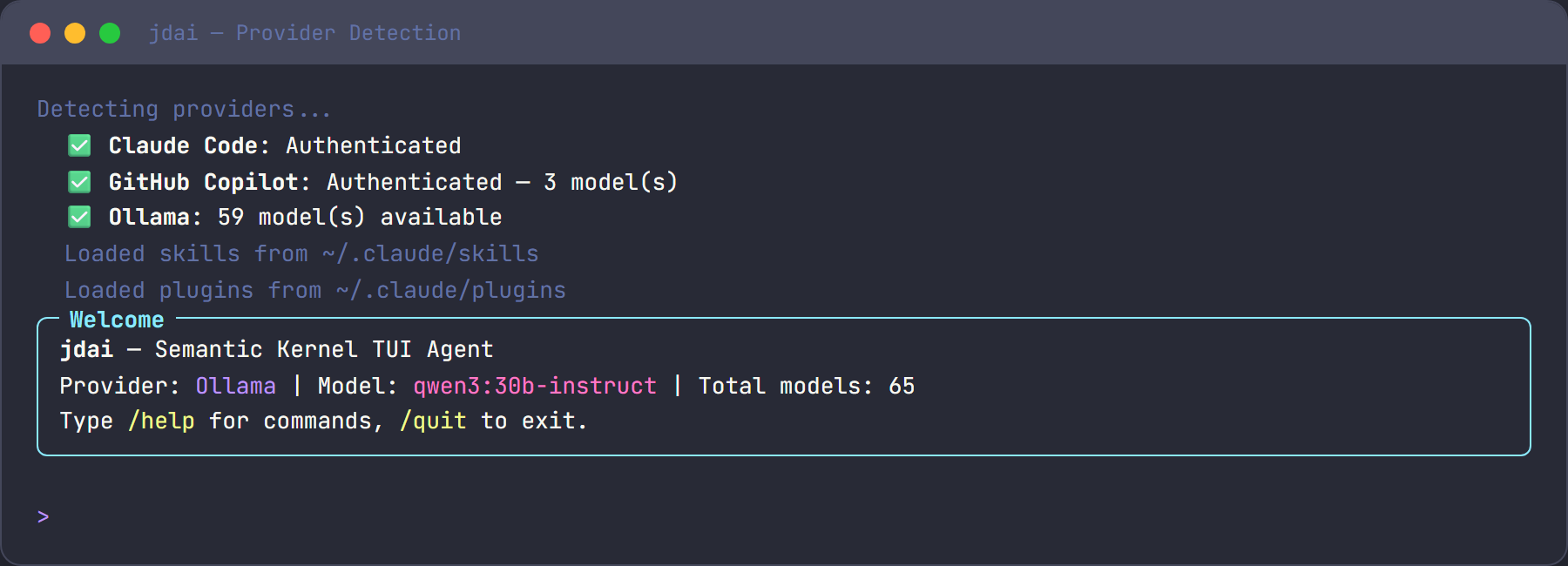
On startup, JD.AI:
- Checks for available AI providers
- Displays detected providers and models
- Selects the best available provider
- Loads project instructions (JDAI.md, CLAUDE.md, etc.)
- Shows the welcome banner
Provider setup
You need at least one AI provider. JD.AI auto-detects all available providers.
Claude Code
- Install the Claude Code CLI:
npm install -g @anthropic-ai/claude-code - Authenticate:
claude auth login - JD.AI detects the session automatically on next launch.
GitHub Copilot
- Authenticate via GitHub CLI:
Or sign in through the VS Code GitHub Copilot extension.gh auth login --scopes copilot - JD.AI detects available Copilot models automatically.
OpenAI Codex
- Install the Codex CLI:
npm install -g @openai/codex - Authenticate:
Or set thecodex auth loginOPENAI_API_KEYenvironment variable directly. - JD.AI detects the session automatically on next launch.
Ollama (local, free)
- Install Ollama from ollama.com
- Start the server:
ollama serve - Pull a chat model:
ollama pull llama3.2 - Optionally pull an embedding model for semantic memory:
ollama pull all-minilm
Local models (fully standalone)
No external service needed — run GGUF models directly in-process via LLamaSharp:
- Place
.ggufmodel files in~/.jdai/models/(or any directory). - JD.AI detects them automatically on startup.
- Or use the interactive commands to search and download:
/local search llama 7b
/local download TheBloke/TinyLlama-1.1B-Chat-v1.0-GGUF
See Local Models for the full guide.
Switching providers and models
/providers     # List all detected providers with status
/provider      # Show current provider and model
/models        # List all available models across providers
/model <name>  # Switch to a specific model
CLI options
| Flag | Description |
|---|---|
--resume <id> |
Resume a previous session by ID |
--new |
Start a fresh session |
--force-update-check |
Force NuGet update check |
--dangerously-skip-permissions |
Skip all tool confirmations |
--gateway |
Start in gateway mode |
--gateway-port <port> |
Port for gateway API (default: 5100) |
What's next
- Quickstart — Walk through your first real task
- Best Practices — Tips for effective prompting
- Commands Reference — All 23+ slash commands
- Providers — Detailed provider documentation