Installation
Get JD.AI up and running on your machine. This page covers prerequisites, installation methods, first run, and basic CLI options. For provider-specific setup, see Provider Setup.
Prerequisites
- .NET 10.0 SDK or later (not required for native binary installs)
- At least one AI provider configured (see Provider Setup)
Verify your .NET version:
dotnet --version
# Should output 10.0.x or later
Install as a global .NET tool
The recommended way to install JD.AI is as a global .NET tool from NuGet:
dotnet tool install --global JD.AI
This makes the jdai command available system-wide.
Update to the latest version
dotnet tool update --global JD.AI
You can also update from within JD.AI using jdai update or the /update slash command (see Updating below).
Install to a local path
If you prefer not to install globally, use --tool-path:
dotnet tool install JD.AI --tool-path ./tools
./tools/jdai
Install as a native binary (no .NET required)
Pre-built self-contained binaries are published to GitHub Releases for every release. No .NET SDK is needed.
Download the archive for your platform from the latest release:
Platform Asset Windows x64 jdai-win-x64.zipWindows ARM64 jdai-win-arm64.zipLinux x64 jdai-linux-x64.tar.gzLinux ARM64 jdai-linux-arm64.tar.gzmacOS Intel jdai-osx-x64.tar.gzmacOS Apple Silicon jdai-osx-arm64.tar.gzExtract and place the binary on your
PATH:# Linux / macOS tar -xzf jdai-linux-x64.tar.gz -C ~/.local/bin/ # Windows (PowerShell) Expand-Archive jdai-win-x64.zip -DestinationPath "$env:LOCALAPPDATA\jdai" # Then add that directory to your PATHVerify:
jdai --print "hello"
Once installed, use jdai update to update to newer releases without repeating these steps.
Install from source
Clone the repository and build locally:
git clone https://github.com/JerrettDavis/JD.AI.git
cd JD.AI
dotnet build
dotnet run --project src/JD.AI
First run
Launch JD.AI in any project directory:
cd /path/to/your/project
jdai
On startup, JD.AI:
- Checks for available AI providers
- Displays detected providers and models
- Selects the best available provider
- Loads project instructions (
JDAI.md,CLAUDE.md, etc.) - Shows the welcome banner
If no providers are detected, JD.AI will prompt you to configure one. The quickest way is to set an API key environment variable:
export OPENAI_API_KEY=sk-...
jdai --provider openai
See Provider Setup for all 15 providers.
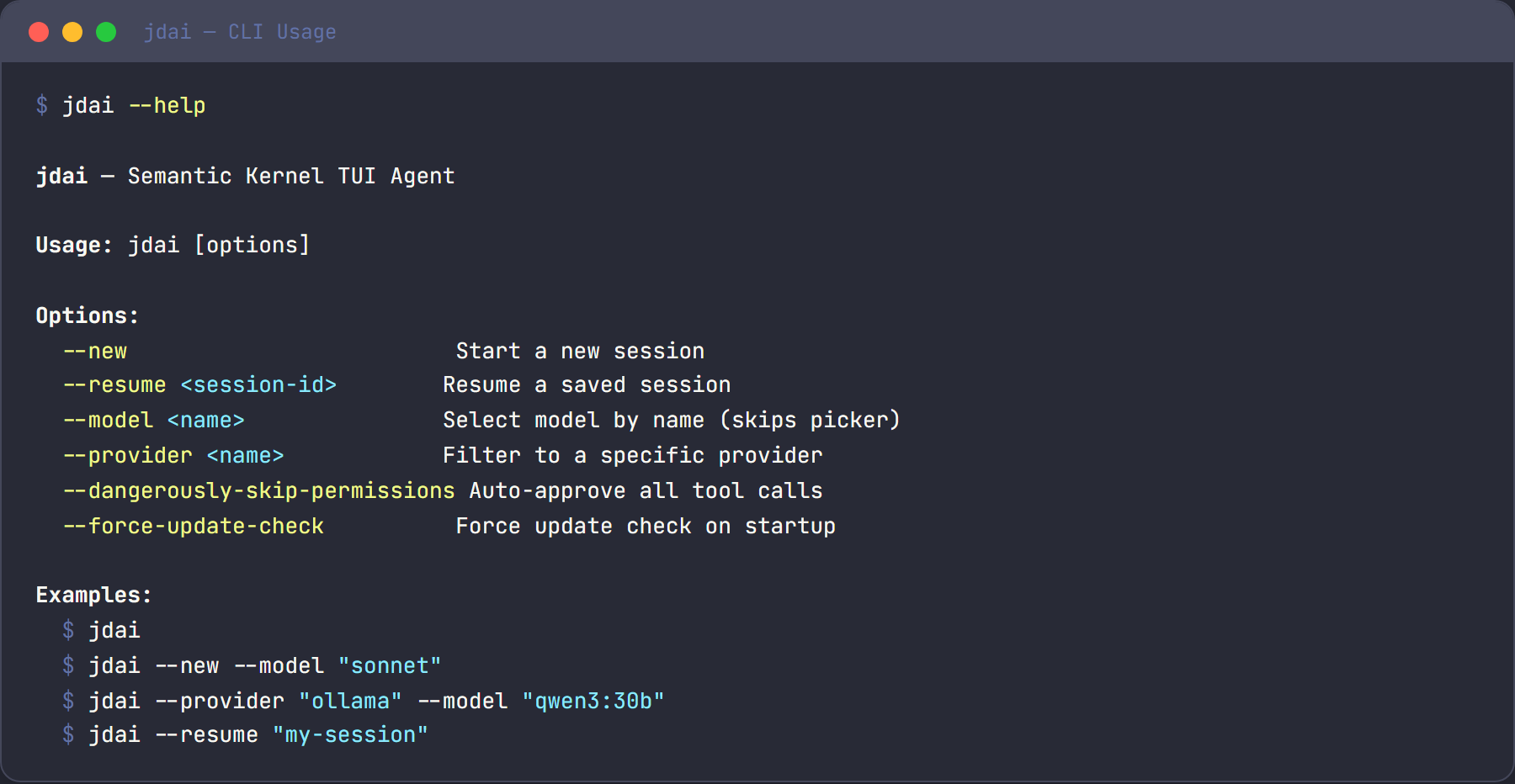
Common CLI options
| Flag | Description |
|---|---|
--provider <name> |
Use a specific provider (e.g. openai, anthropic) |
--model <name> |
Use a specific model |
--resume <id> |
Resume a previous session by ID |
--continue |
Continue the most recent session |
--new |
Start a fresh session |
--print |
Non-interactive mode — print the response and exit |
--output-format <fmt> |
Output format: text, json, or markdown |
--verbose |
Enable debug logging |
--dangerously-skip-permissions |
Skip all tool confirmations |
For the full list, run jdai --help.
Verify the installation
After installing, confirm everything works:
jdai --print "hello, are you working?"
JD.AI should detect a provider, send the prompt, and print a response.
Updating
JD.AI includes built-in update and install CLI commands that detect how the tool was installed and apply updates using the appropriate method.
jdai update
Checks for a newer version and applies it:
jdai update
JD.AI automatically detects the installation method (dotnet tool, native binary, winget, chocolatey, scoop, brew, or apt) and runs the correct upgrade command. For native binary installs, it downloads the latest release from GitHub and replaces the binary in-place.
| Flag | Description |
|---|---|
--check |
Check for updates without applying them |
--force |
Force update even if already on the latest version |
jdai install
Downloads and installs a specific version from GitHub Releases as a native binary. No .NET SDK required:
# Install the latest version
jdai install

# Install a specific version
jdai install 1.2.0

# Force reinstall
jdai install --force
This always uses the GitHub release strategy regardless of the original installation method, making it useful for switching from a dotnet tool install to a self-contained binary.
In-session updates
You can run update workflow commands in-session:
/update status/update check/update plan [target|latest]/update apply [target|latest]
JD.AI checks for updates automatically on startup and displays a notification when a newer version is available.
Operator safety and rollback notes
- Run
/update planbefore/update applyto verify component order and timing windows. - Keep
updates.requireApproval=truein shared/operator environments. - Use conservative
updates.drainTimeoutandupdates.reconnectTimeoutvalues to avoid dropping in-flight work. - If an update fails, reinstall a known-good version via
dotnet tool install/update -g <package> --version <known-good>and restart services.
Uninstall
dotnet tool uninstall --global JD.AI
Next steps
- Quickstart — walk through your first real task
- Provider Setup — configure AI providers
- Configuration — customize JD.AI for your projects