Admin Dashboard
The JD.AI Admin Dashboard is a Blazor WebAssembly application that provides a real-time management interface for the JD.AI Gateway. It connects to the Gateway via REST API and SignalR for live updates.
Getting Started
Start the Gateway:
cd src/JD.AI.Gateway
dotnet run
Open the dashboard at
http://localhost:5189/
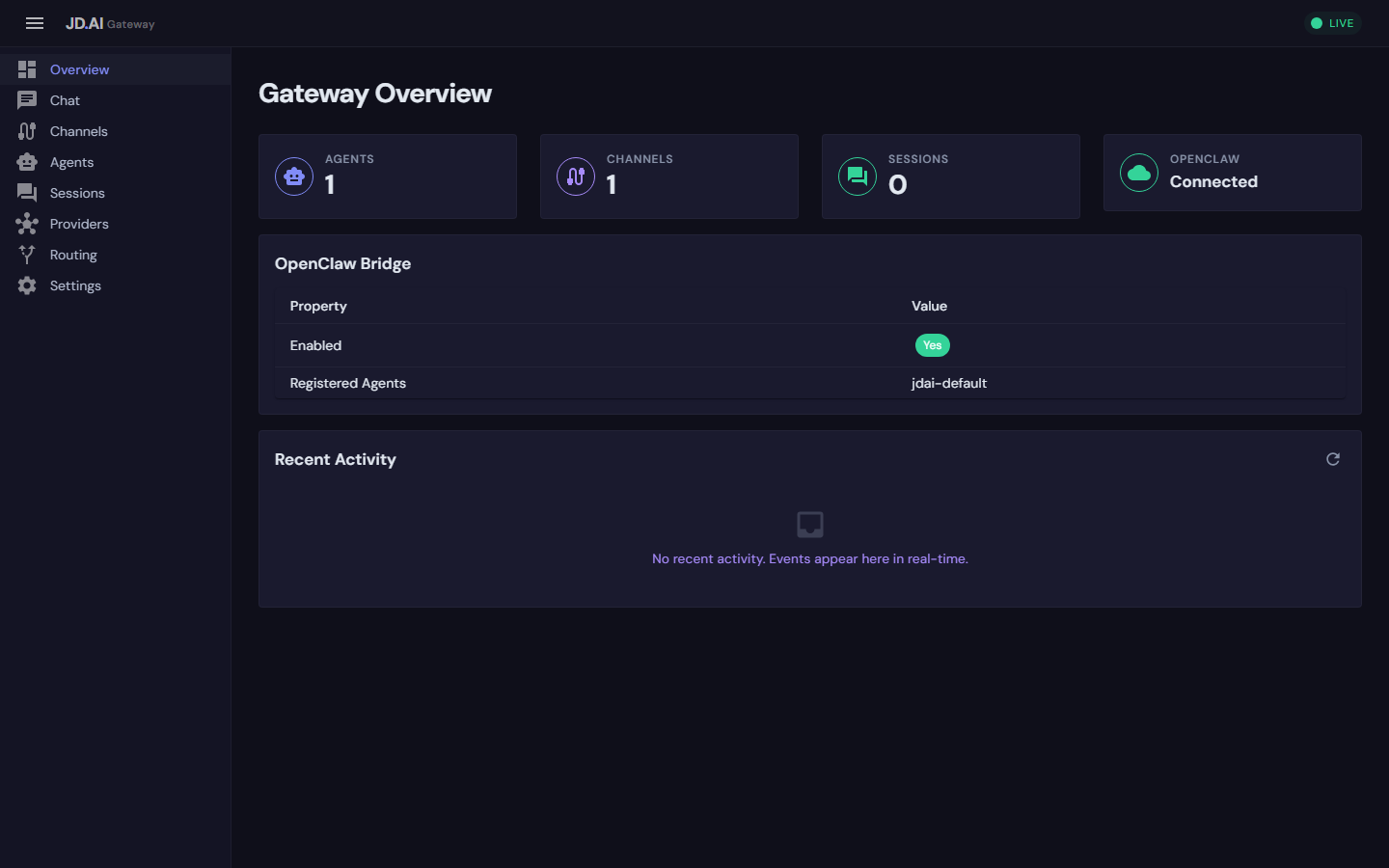
The top-right corner shows a LIVE indicator when the dashboard is connected to the Gateway via SignalR.
Overview Page
The Overview page provides a high-level summary of the Gateway state:
- Agents — number of currently running agent instances
- Channels — active communication channels (Discord, Signal, WebChat, etc.)
- Sessions — active chat sessions
- OpenClaw — bridge connection status
The Recent Activity feed displays real-time events as they occur, including agent spawns, channel connections, and message activity.
Real-Time Session Monitoring
The dashboard streams live events via SignalR:
- Agent turn completions with token counts
- Channel message arrivals and deliveries
- Provider status changes
- Update notifications
Connection status is shown in the top-right corner with a green "LIVE" indicator. If the connection drops, the dashboard automatically reconnects.
Agent Management
The Agents page lists all currently running agent instances with full lifecycle controls.
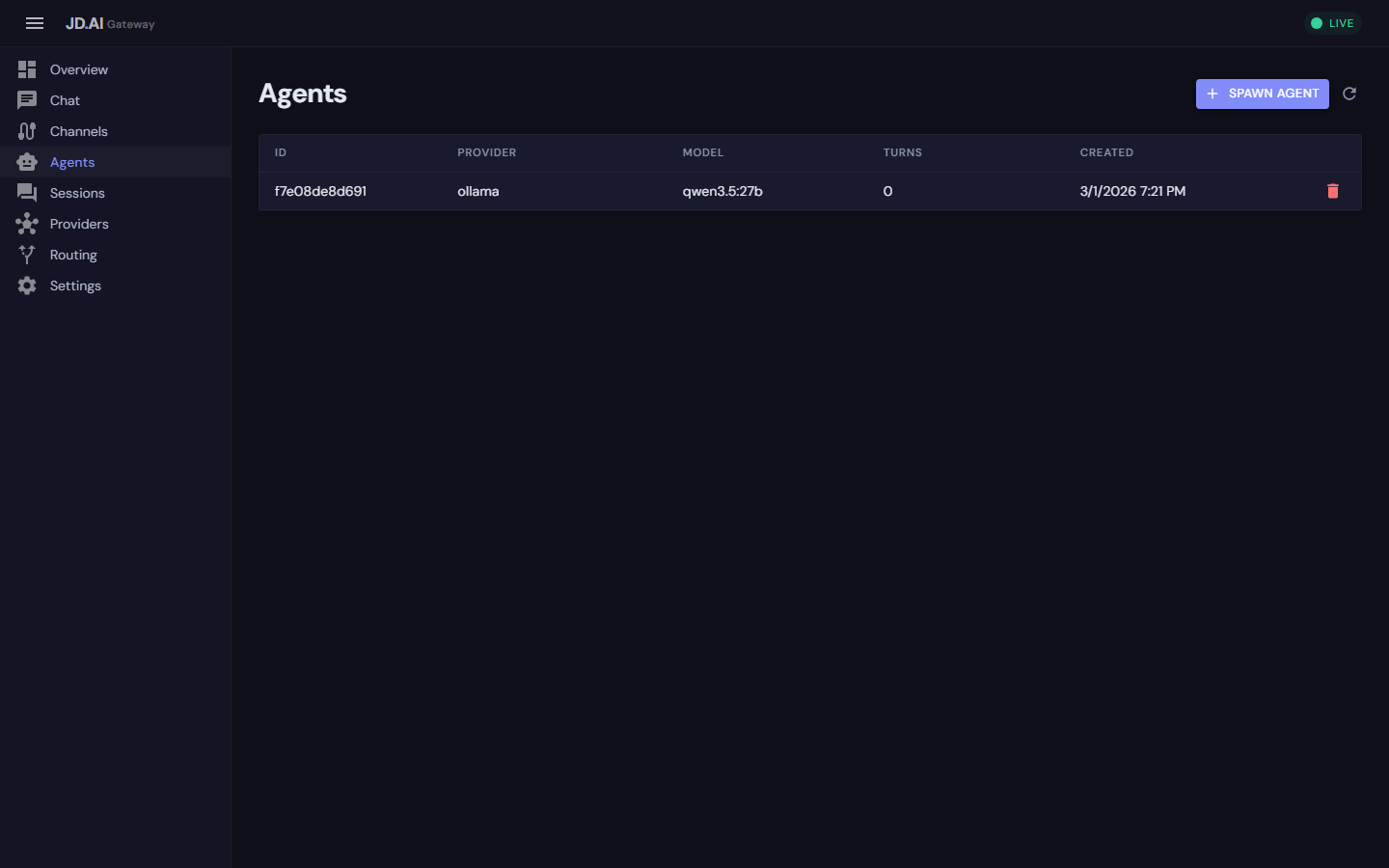
| Column | Description |
|---|---|
| ID | Unique agent instance identifier |
| Provider | AI provider (ollama, claude-code, github-copilot) |
| Model | Model being used (e.g., qwen3.5:27b) |
| Turns | Number of conversation turns completed |
| Created | When the agent was spawned |
Spawning agents
Click + Spawn Agent to create a new agent instance. Configure:
- Provider and model selection
- System prompt
- Model parameters (temperature, top-p, max tokens)
Stopping agents
Use the trash icon to stop and remove an agent. Active sessions are gracefully drained before removal.
Agent monitoring
From the Agents page, monitor each agent's:
- Token consumption — cumulative prompt and completion tokens
- Turn latency — average response time per turn
- Provider health — whether the backing provider is reachable
- Active session — the current session associated with the agent
Channel Status
The Channels page shows all configured communication channels and their connection status.
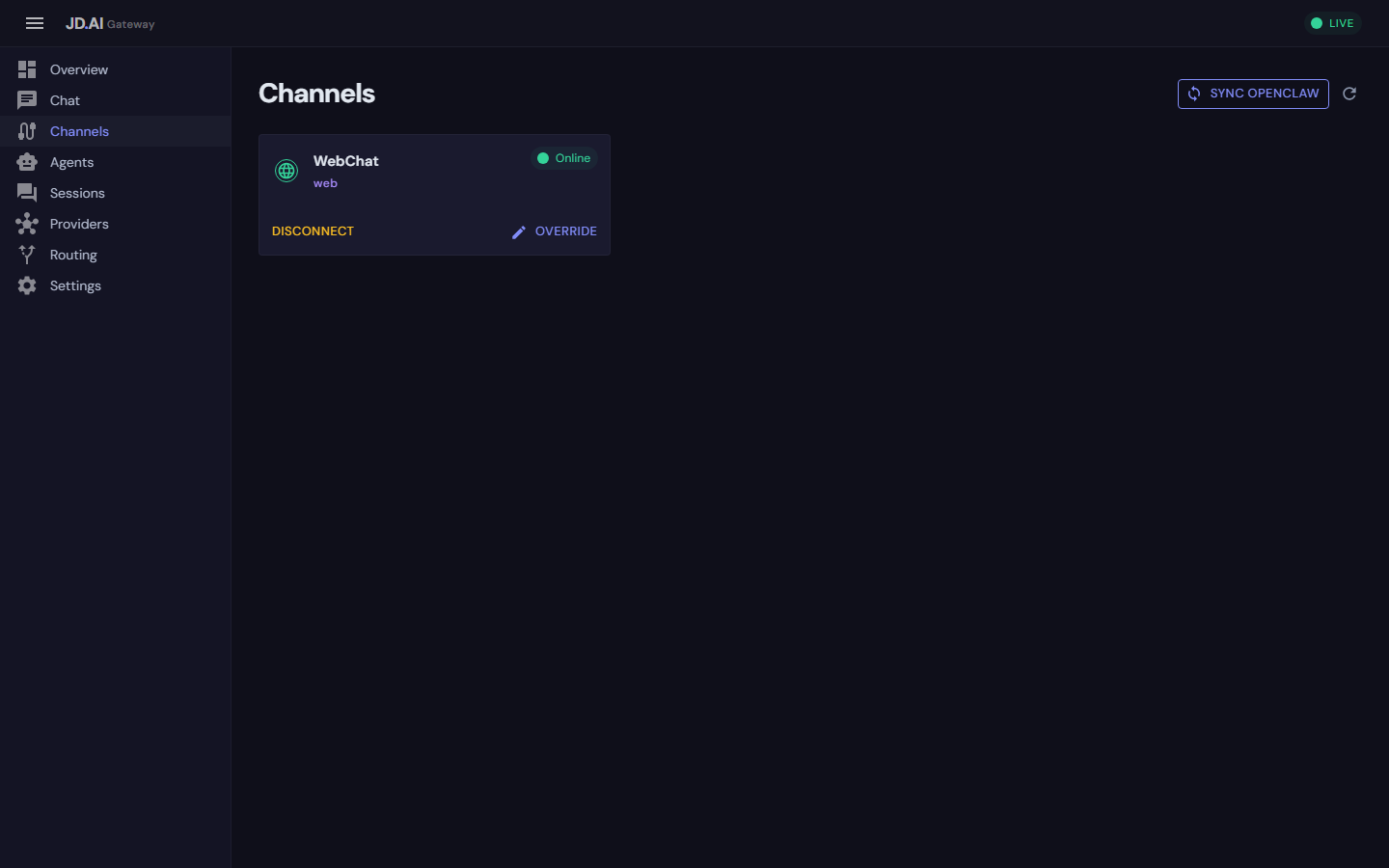
Each channel card displays:
- Channel name and type (web, discord, signal, slack, telegram)
- Connection status (Online / Offline)
- Disconnect / Connect controls
- Override — configure channel-specific settings
The Sync OpenClaw button synchronizes channel configuration with the OpenClaw bridge.
Web Chat
The Chat page provides a built-in web interface for communicating with agents:
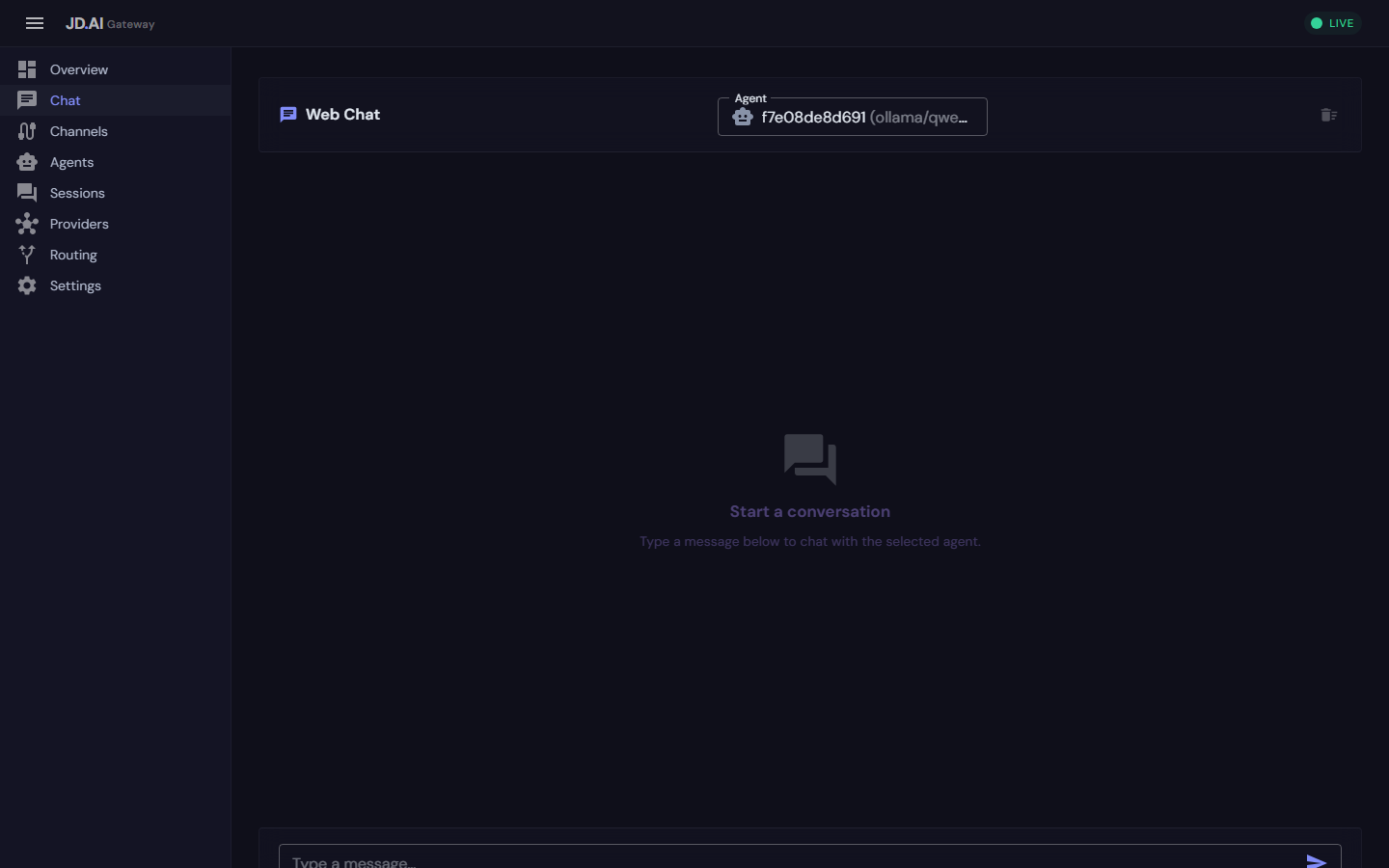
- Agent selector — choose which agent to chat with from the dropdown
- Streaming responses — tokens stream in real-time via SignalR
- Message history — full conversation displayed with user/assistant bubbles
- Markdown rendering — code blocks and formatting rendered inline
- Clear conversation — reset the chat at any time
Messages are sent to the Gateway's AgentHub and streamed back as chunked responses.
Configuration UI
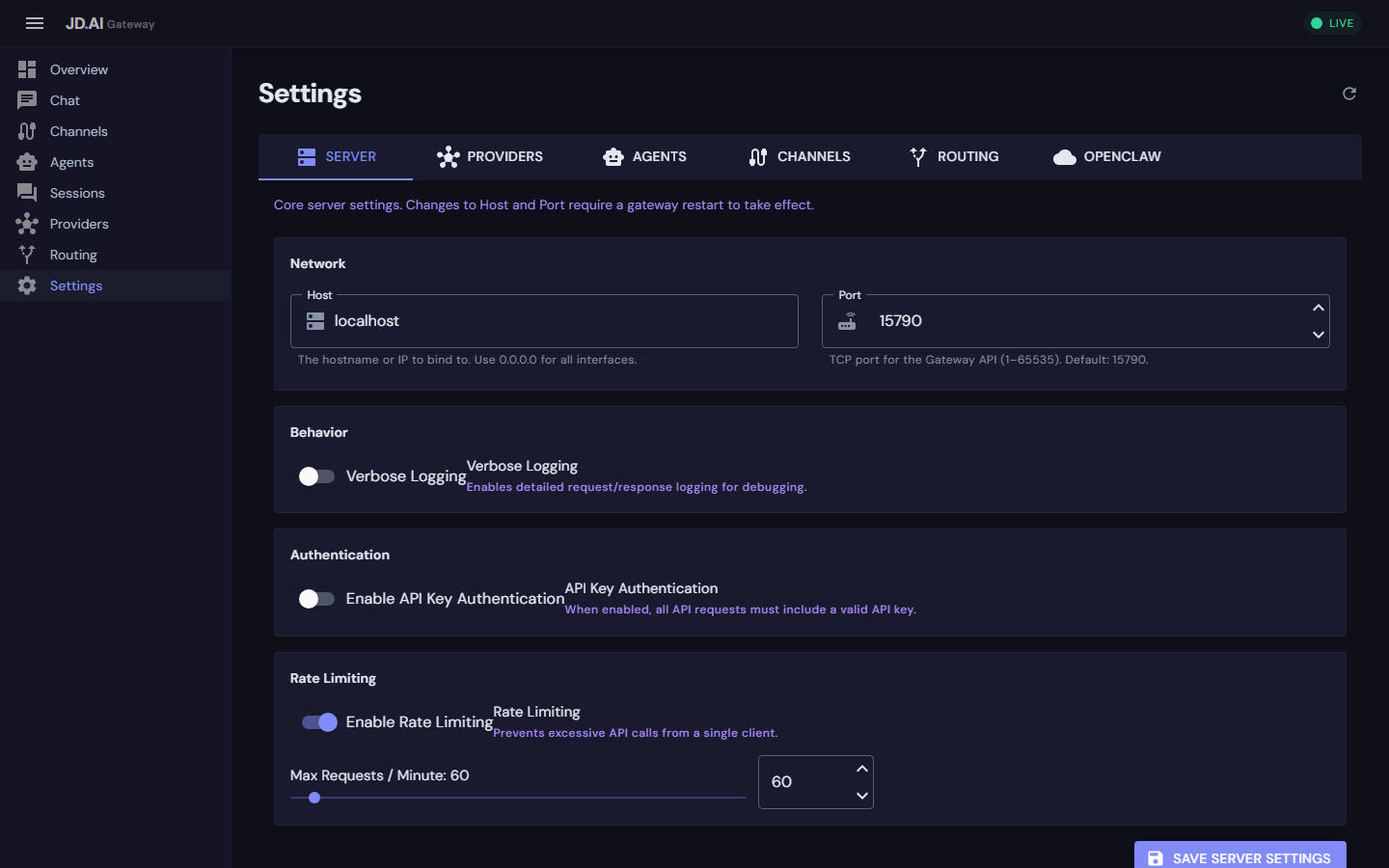
The Settings page provides a WYSIWYG editor for all Gateway configuration. Changes are applied in real-time and persisted to the configuration file.
Tip
Changes made through the Settings UI are validated before applying. Invalid values are rejected with a descriptive error message.
Server settings
- Network — host and port binding
- Behavior — verbose logging toggle
- Authentication — enable/disable API key authentication
- Rate Limiting — toggle rate limiting and set max requests per minute
Provider settings
- Add/remove providers
- Configure endpoints and API keys
- Set default models per provider
Agent settings
- Agent name, provider, and model selection
- System prompt customization
- Model parameters: temperature, top-p, top-k, max tokens, context window, penalties, seed, stop sequences
Channel settings
Configure channel adapters (Discord, Signal, Slack, Telegram, WebChat) with per-channel credentials and options.
Each channel configuration includes:
- Bot token / credentials — channel-specific authentication
- Target channels / groups — where the bot listens and responds
- Message format — how agent responses are formatted for the platform
- Auto-connect — whether the channel connects automatically on gateway startup
Routing settings
- Default agent assignment
- Channel-to-agent mappings
- Routing strategy selection
Model Providers
The Providers page shows all configured AI providers, their connection status, and available models. Each provider card shows:
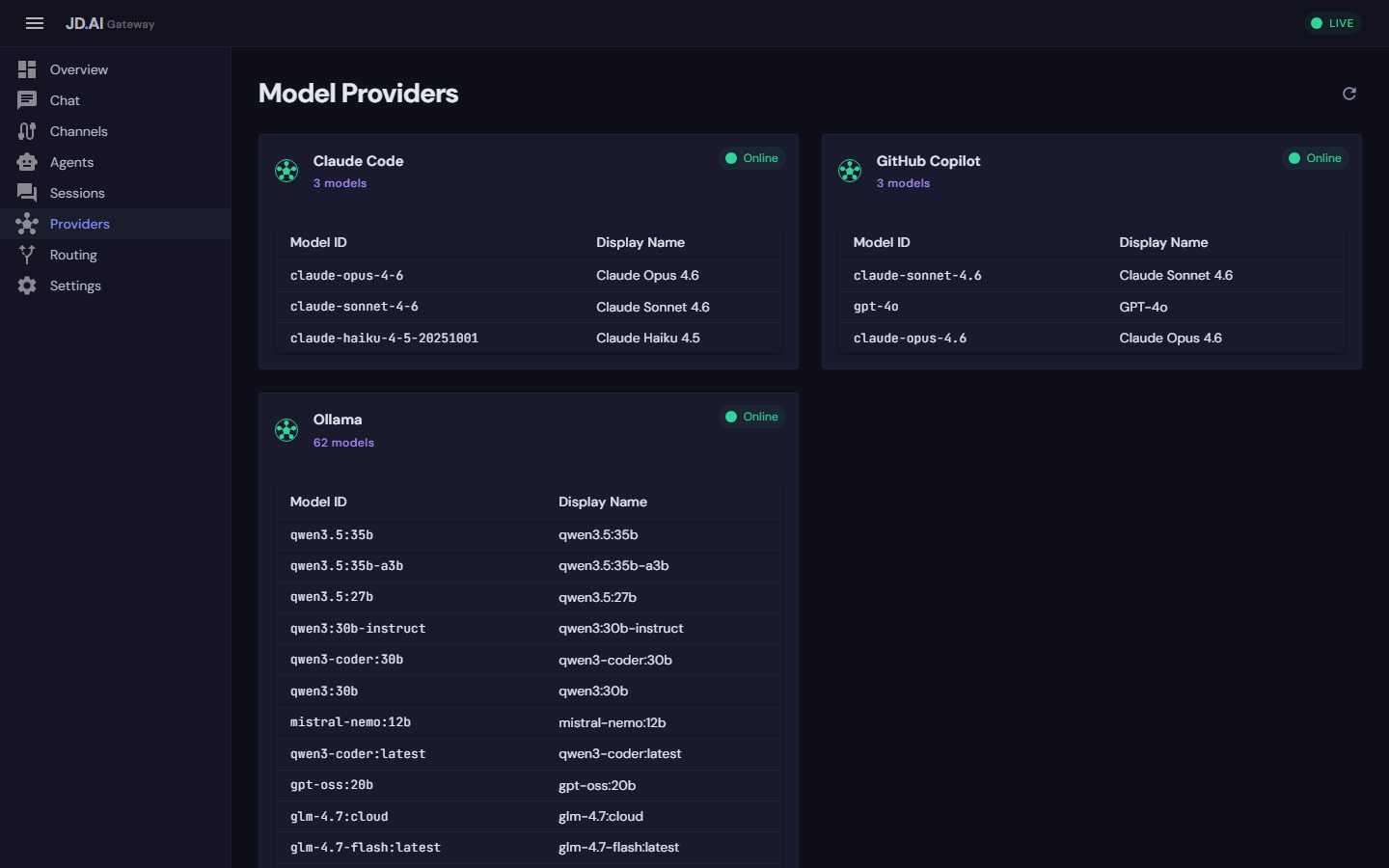
- Provider name and status (Online / Offline)
- Number of available models
- Model catalog with ID and display name
Supported providers include Claude Code, GitHub Copilot, OpenAI Codex, Ollama, local GGUF models (via LLamaSharp), and API-key providers (OpenAI, Anthropic, Google Gemini, Mistral, AWS Bedrock, HuggingFace, and OpenAI-compatible endpoints).
Routing Configuration
The Routing tab in Settings defines how messages are routed to agents:
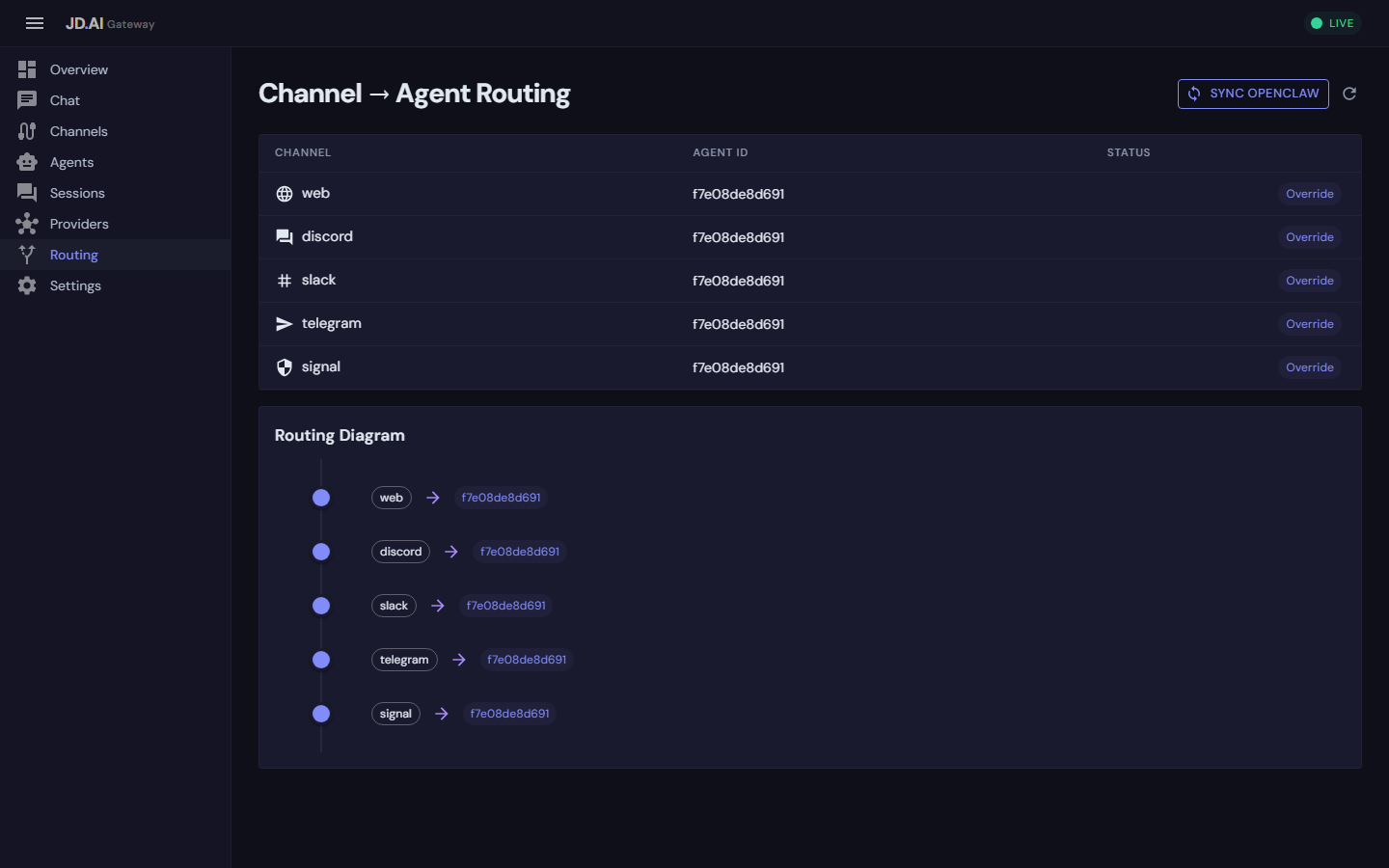
- Default agent — which agent handles messages when no specific route matches
- Channel-to-agent mappings — assign specific agents to specific channels
- Routing strategy — round-robin, priority-based, or direct assignment
OpenClaw Bridge
The OpenClaw tab configures cross-gateway orchestration:
- Bridge URL and connection settings
- Agent registration for remote access
- Channel override mappings for multi-gateway deployments
Authentication
When Gateway:Auth:Enabled is true, the dashboard requires authentication. Pass the API key via the login prompt on first access.
Dashboard access follows the same role-based model as the REST API:
| Role | Dashboard capabilities |
|---|---|
User |
View-only access to all pages |
Operator |
Send messages, connect/disconnect channels |
Admin |
Full access including agent lifecycle and settings |
See Security for details on configuring API keys and roles.
Architecture
┌─────────────────┐     REST API      ┌──────────────────┐
│   Dashboard      │ ◄──────────────► │   Gateway API    │
│   (Blazor WASM)  │     SignalR       │   (ASP.NET Core) │
│                  │ ◄──────────────► │                  │
│  - Pages/        │                   │  - Endpoints/    │
│  - Components/   │                   │  - Hubs/         │
│  - Services/     │                   │  - Services/     │
└─────────────────┘                   └──────────────────┘
The dashboard is served as static files from the Gateway and communicates entirely through HTTP and WebSocket connections.
Deployment considerations
- The dashboard is a static Blazor WASM app bundled with the Gateway — no separate deployment required
- For production, place the Gateway behind a TLS-terminating reverse proxy (see Deployment)
- Enable
Auth.Enabledto require authentication for both API and dashboard access - The dashboard works on any modern browser (Chrome, Firefox, Edge, Safari)
Troubleshooting
Dashboard shows "Disconnected"
The SignalR connection to the gateway was lost. Check that:
- The gateway process is running:
jdai-daemon status - The gateway port (default
18789) is accessible - No firewall rules block WebSocket connections
Settings changes not persisting
Ensure the gateway process has write access to appsettings.json. On Linux, check file permissions.
See also
- Observability — health checks and
/doctorcommand - Gateway Administration — scaling and advanced configuration
- Gateway API Reference — REST API and SignalR hub details