Testing CLI apps
Testing a CLI with Cress is a good fit when the command-line tool is part of a broader product workflow and you want the same flow model, evidence model, and reporting model you use for web, desktop, or service testing.
Important
Cress does not currently ship a built-in CLI runtime driver. The recommended pattern is to model CLI actions through plugin-backed steps and keep the business intent in the flow.
Recommended approach
Use this stack for CLI-focused projects:
- Cress project structure for profiles, flows, fixtures, and reports
- a .NET or Node plugin for the actual process invocation
- step manifests that expose business-facing CLI actions
- assertions that validate exit code, stdout, generated files, or downstream system effects
This works well for:
- migration or database-maintenance CLIs
- internal admin tools
- scaffolding generators
- package publishing helpers
- report-export tools
Tooling
| Layer | Recommendation |
|---|---|
| Project and flow orchestration | cress init, validate, run, doctor, discover |
| Step implementation | plugin-backed steps in steps\dotnet\ or steps\node\ |
| Output assertions | follow-up plugin assertions, generated artifacts, or HTTP/UI verification |
| Evidence | Cress run artifacts, logs, generated files, HTML/JSON/JUnit reports |
Getting started
1. Initialize a project
dotnet run --project src\Cress.Cli\Cress.Cli.csproj -- init demos\release-cli
2. Keep the config lean
Most CLI-oriented projects do not need a built-in runtime driver at first:
drivers:
  http:
    enabled: false
  playwright:
    enabled: false
  flawright:
    enabled: false
plugins:
  discover:
    - steps
    - plugins
3. Add a plugin-backed step manifest
Example steps\manifests\cli.yaml:
version: 1
steps:
  - name: cli.release_dry_run
    description: Run the release helper in dry-run mode.
    retrySafe: true
    implementation:
      plugin: custom-dotnet
      operation: Execute

  - name: cli.assert_release_output
    description: Assert that the CLI returned the expected summary.
    retrySafe: true
    implementation:
      plugin: custom-dotnet
      operation: Assert
4. Implement the plugin
The runtime already supports .NET and Node plugin modules. The test suite shows the .NET pattern through ICressPluginModule and StepHandlerRegistration.
Minimal shape:
public sealed class ReleaseCliModule : ICressPluginModule
{
    public IEnumerable<StepHandlerRegistration> GetStepHandlers()
    {
        yield return new StepHandlerRegistration("Execute", ExecuteAsync);
        yield return new StepHandlerRegistration("Assert", AssertAsync);
    }
}
Inside ExecuteAsync, run the process, capture stdout/stderr, and return them through StepExecutionResult.Outputs.
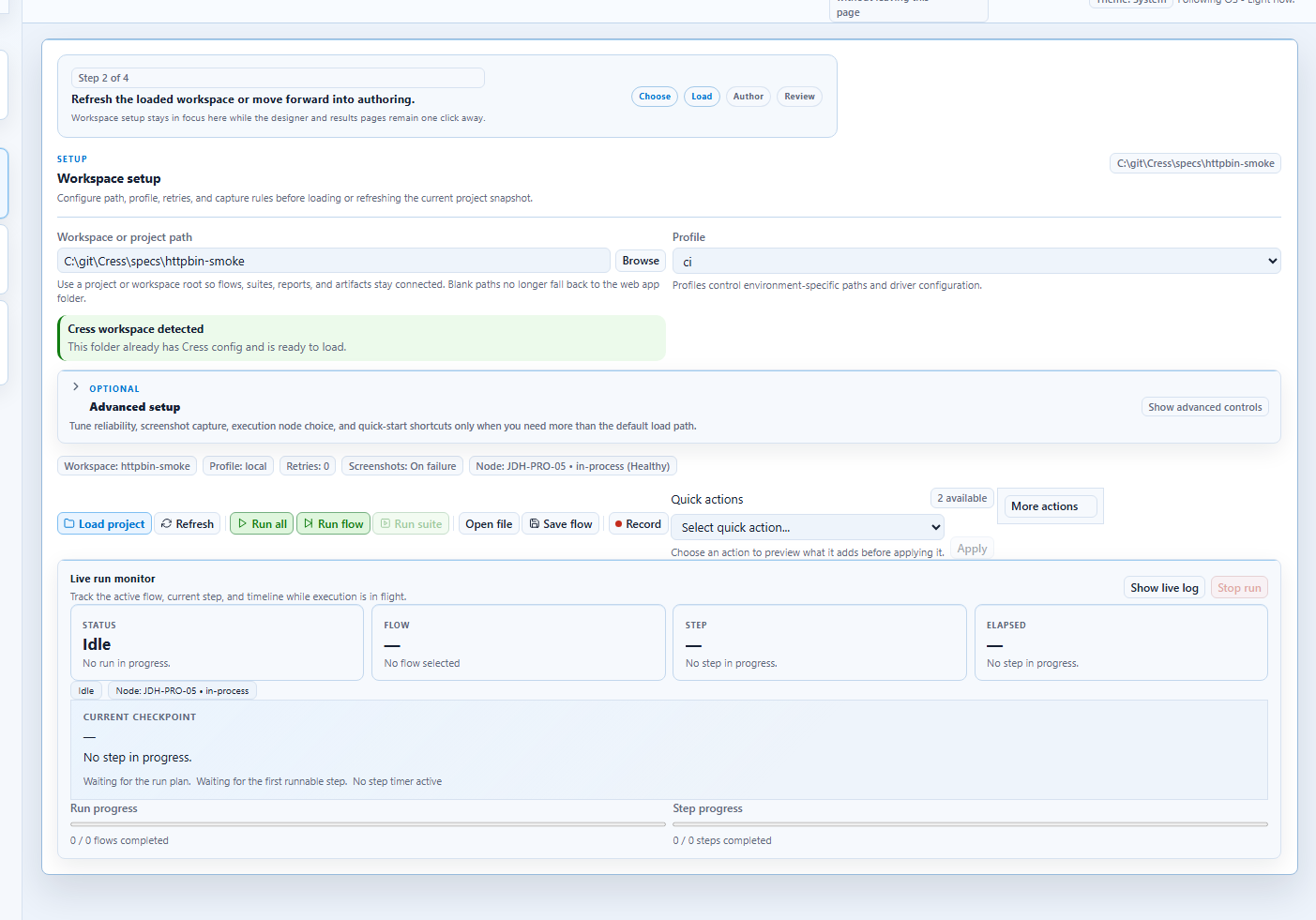
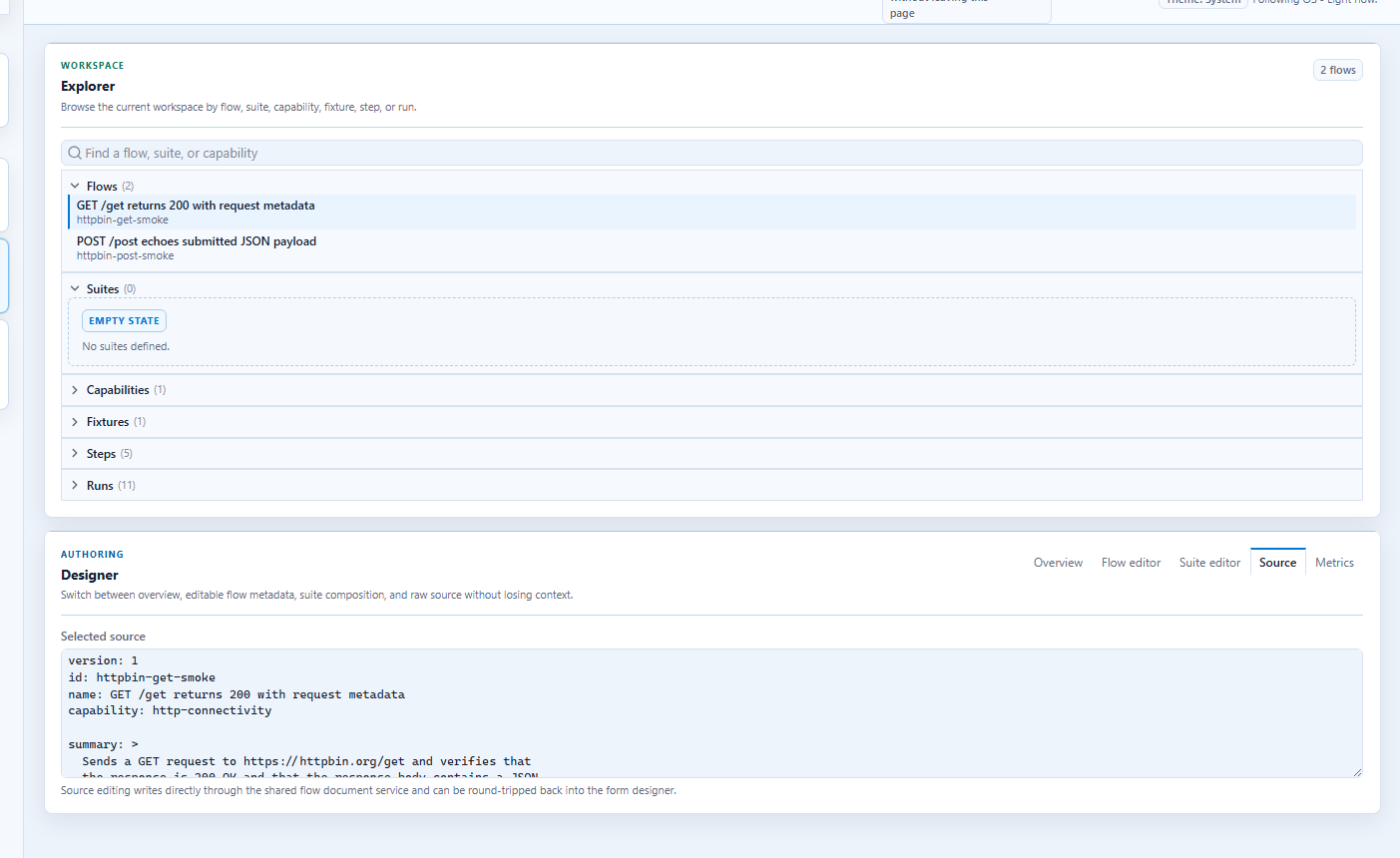
If you want authors to refine or review the resulting flow from the GUI side, the same project can still be opened in Studio or Studio Web and edited in Source view.
Realistic example
Imagine a release CLI that checks package versions before publish.
Flow example:
version: 1
id: release-cli.dry-run
name: Release CLI dry run validates package versions
tags:
  - cli
  - smoke
  - release

when:
  - step: cli.release_dry_run
    with:
      command: dotnet
      arguments: pack src\Cress.Sdk\Cress.Sdk.csproj --configuration Release
then:
  - expect: cli.assert_release_output
    with:
      expected: PACK SUCCEEDED
Useful outcomes to assert:
- exit code is zero
- stdout contains a business-facing success line
- stderr is empty or does not contain known failure markers
- an output file or report was created
Step-by-step: test cmd.exe with a plugin-backed flow
This is a practical way to get started with a familiar Windows CLI before you wrap your own product commands.
Goal
Open cmd.exe, run echo hello from cress, and assert that the command succeeds and prints the expected text.
1. Create the project
dotnet run --project src\Cress.Cli\Cress.Cli.csproj -- init demos\cmd-smoke
2. Add a CLI step manifest
Create demos\cmd-smoke\steps\manifests\cli.yaml:
version: 1
steps:
  - name: cli.exec
    description: Execute a command-line process.
    retrySafe: true
    implementation:
      plugin: custom-dotnet
      operation: Execute

  - name: cli.assert-stdout
    description: Assert that stdout contains expected text.
    retrySafe: true
    implementation:
      plugin: custom-dotnet
      operation: AssertStdoutContains
3. Implement the plugin operations
Create a small .NET plugin module that:
- starts
cmd.exe /c <your command> - captures exit code, stdout, and stderr
- returns those values in
StepExecutionResult.Outputs - checks stdout in the assertion operation
For this walkthrough, the business intent stays in the flow and the process details stay inside the plugin.
4. Author the flow
Create demos\cmd-smoke\flows\cmd\echo.flow.yaml:
version: 1
id: cmd.echo
name: cmd prints hello from cress
tags:
  - cli
  - smoke
  - windows

when:
  - step: cli.exec
    with:
      command: cmd.exe
      arguments: /c echo hello from cress
then:
  - expect: cli.assert-stdout
    with:
      contains: hello from cress
5. Validate, discover, and run
dotnet run --project src\Cress.Cli\Cress.Cli.csproj -- validate demos\cmd-smoke
dotnet run --project src\Cress.Cli\Cress.Cli.csproj -- discover steps demos\cmd-smoke --json
dotnet run --project src\Cress.Cli\Cress.Cli.csproj -- run demos\cmd-smoke --report html,json
6. Expand to realistic CLI scenarios
After the echo smoke test is stable, reuse the same pattern for commands people already know:
cmd.exe /c dirto assert files exist after a build or exportdotnet --infoto assert the agent image is ready for a pipelinegit status --shortto validate clean or dirty repository states in tooling flows- product CLIs such as
contoso-admin users sync --dry-run
Native test-framework integration
When you want CLI flows to run inside an existing test suite instead of through a standalone cress run, export the flow into a framework-native test class:
dotnet run --project src\Cress.Cli\Cress.Cli.csproj -- export xunit demos\cmd-smoke --flow cmd.echo
dotnet run --project src\Cress.Cli\Cress.Cli.csproj -- export nunit demos\cmd-smoke --flow cmd.echo
dotnet run --project src\Cress.Cli\Cress.Cli.csproj -- export mstest demos\cmd-smoke --flow cmd.echo
Those generated tests call the Cress engine directly, so designers can keep working in Studio and YAML while engineering teams check the same flows into product test projects and CI pipelines.
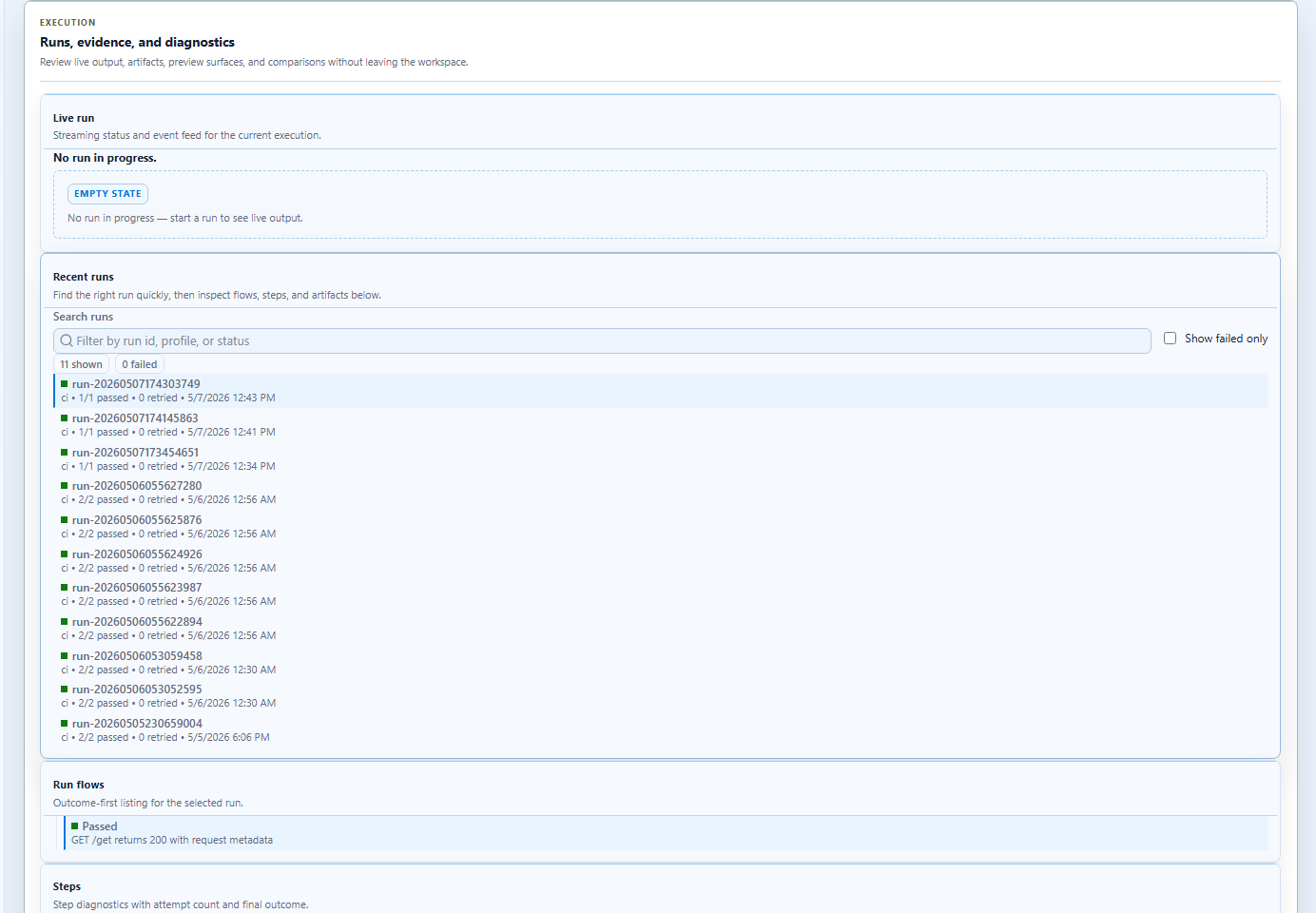
Use the results view to review evidence when those exported tests fail in a developer run.
Good use cases
Configuration audit tools
Use Cress when the CLI validates a system state and you want the result to appear in the same reporting pipeline as other product flows.
Migration commands
Wrap migrate, seed, or rollback commands in plugin steps and assert:
- command success
- expected schema or API state
- generated audit artifacts
Scaffolding tools
Use a CLI step to generate a project, then follow it with file or service-level assertions in later steps.
Design guidance
- expose business-facing step names like
cli.release_dry_run, not raw process details - return outputs that later assertions can consume
- write process logs into the Cress artifact directory
- keep environment-specific flags in profiles or variables
- use
doctoranddiscover steps --jsonwhen plugin discovery is not behaving as expected
Practical command loop
dotnet run --project src\Cress.Cli\Cress.Cli.csproj -- validate demos\release-cli
dotnet run --project src\Cress.Cli\Cress.Cli.csproj -- doctor --json
dotnet run --project src\Cress.Cli\Cress.Cli.csproj -- discover steps --json
dotnet run --project src\Cress.Cli\Cress.Cli.csproj -- run demos\release-cli --report html,json