Desktop quickstart
This path shows how to stand up a Windows desktop automation project with the Flawright runtime driver and the Studio recording flow.
1. Create a project
dotnet run --project src\Cress.Cli\Cress.Cli.csproj -- init demos\desktop-sample
2. Enable the Flawright driver
Update .cress\config.yaml so desktop execution is turned on:
drivers:
  playwright:
    enabled: false
  http:
    enabled: false
  flawright:
    enabled: true
3. Configure the desktop profile
Desktop projects usually need the app path, a predictable window title, and launch timing:
profile: local
timeouts:
  driver: 15000
evidence:
  mode: full
  screenshots: true
flawright:
  applicationPath: C:\Path\To\YourDesktopApp.exe
  windowTitle: Cress Flawright Test App
  launchTimeoutMs: 15000
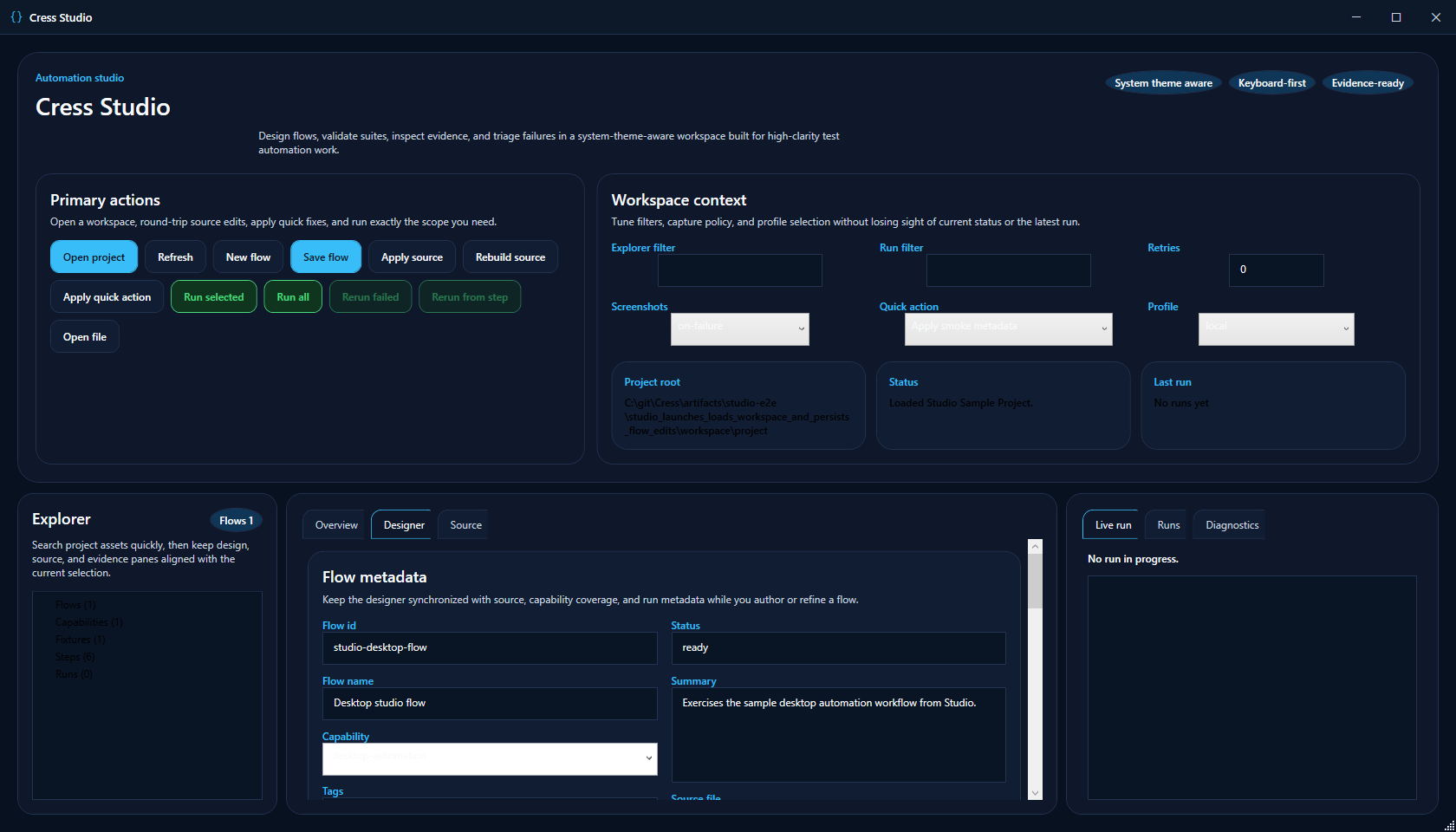
4. Open the project in Studio
The desktop authoring loop uses the same workspace layout as web automation, but the target picker and Flawright selector choices are desktop-specific.
5. Follow the desktop recording flow
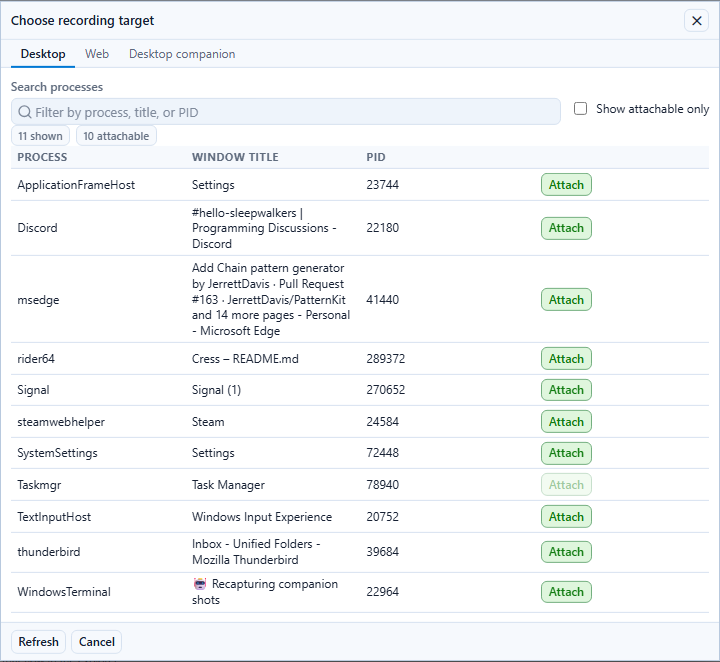
- Start the recorder.
- Choose the desktop target from the picker.
- Interact with the application window.
- Save the draft flow and review the generated source.
6. Normalize desktop locators
Use this priority order:
#AutomationIdname:Visible Namerole:Buttonlabel:Field Label
when:
  - step: ui.fill
    with:
      selector: "#NameInput"
      value: Grace Hopper
  - step: ui.invoke
    with:
      selector: "name:Continue"
then:
  - expect: ui.assert-text
    with:
      selector: "#GreetingLabel"
      text: Hello Grace Hopper
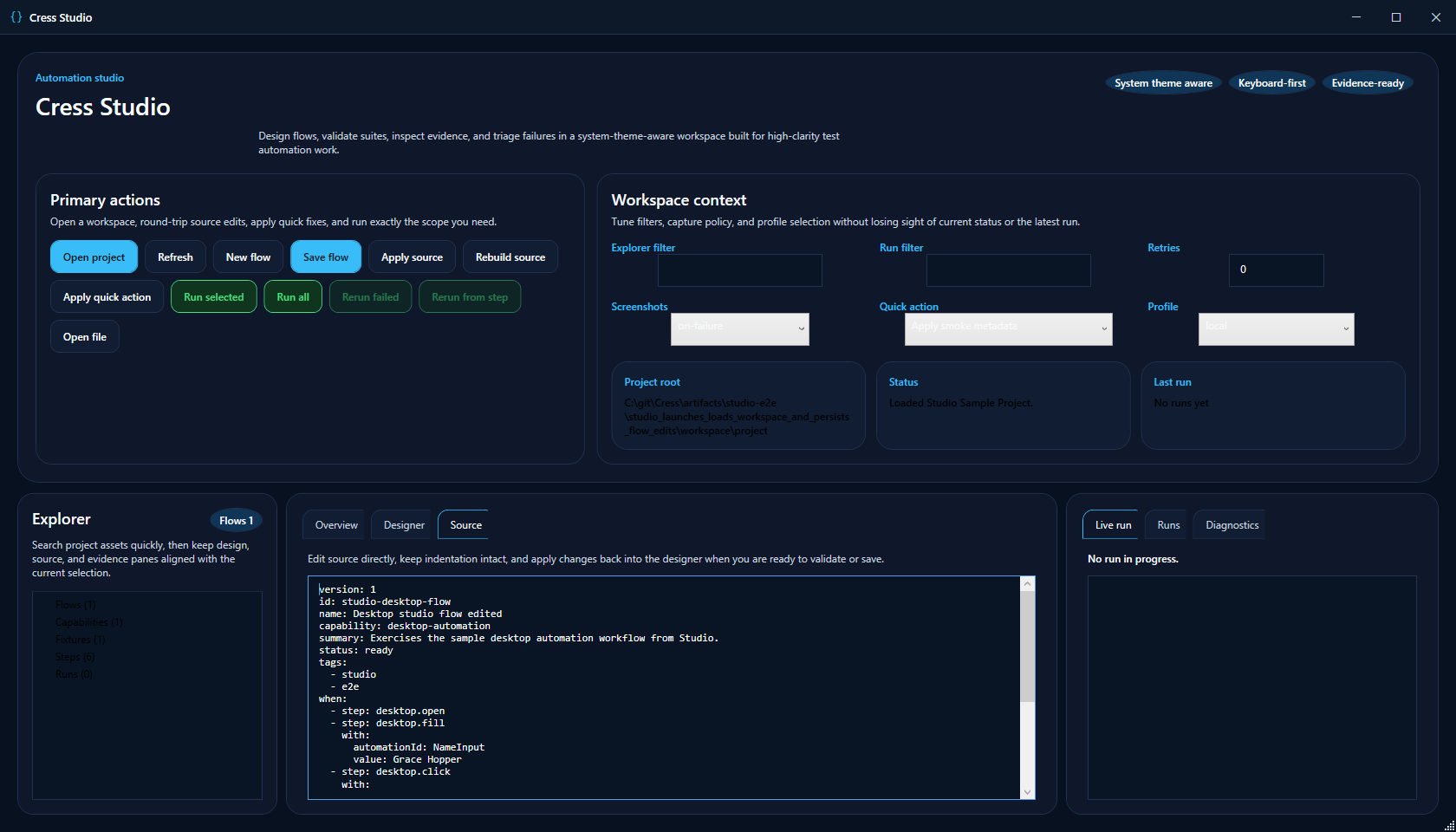
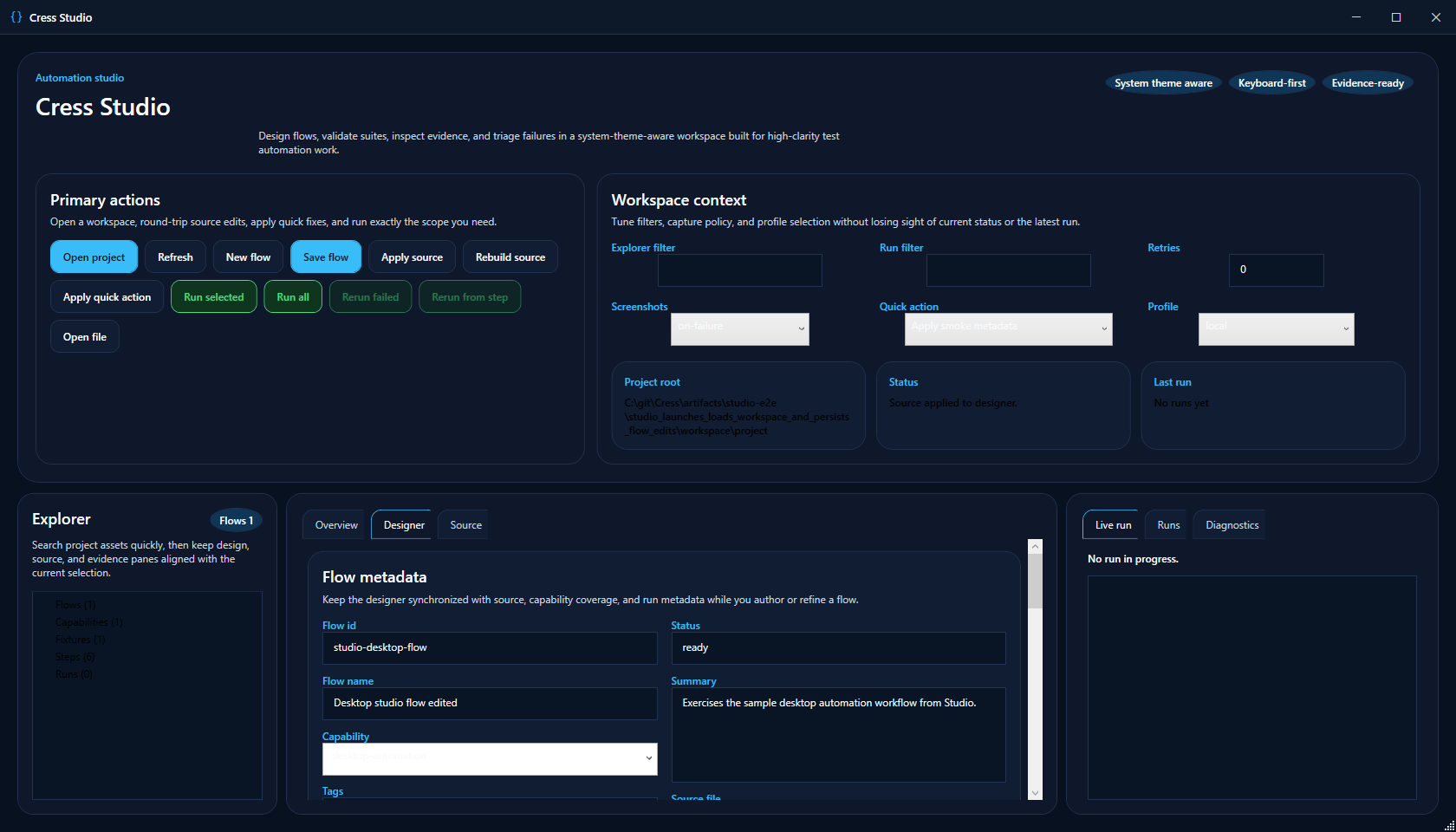
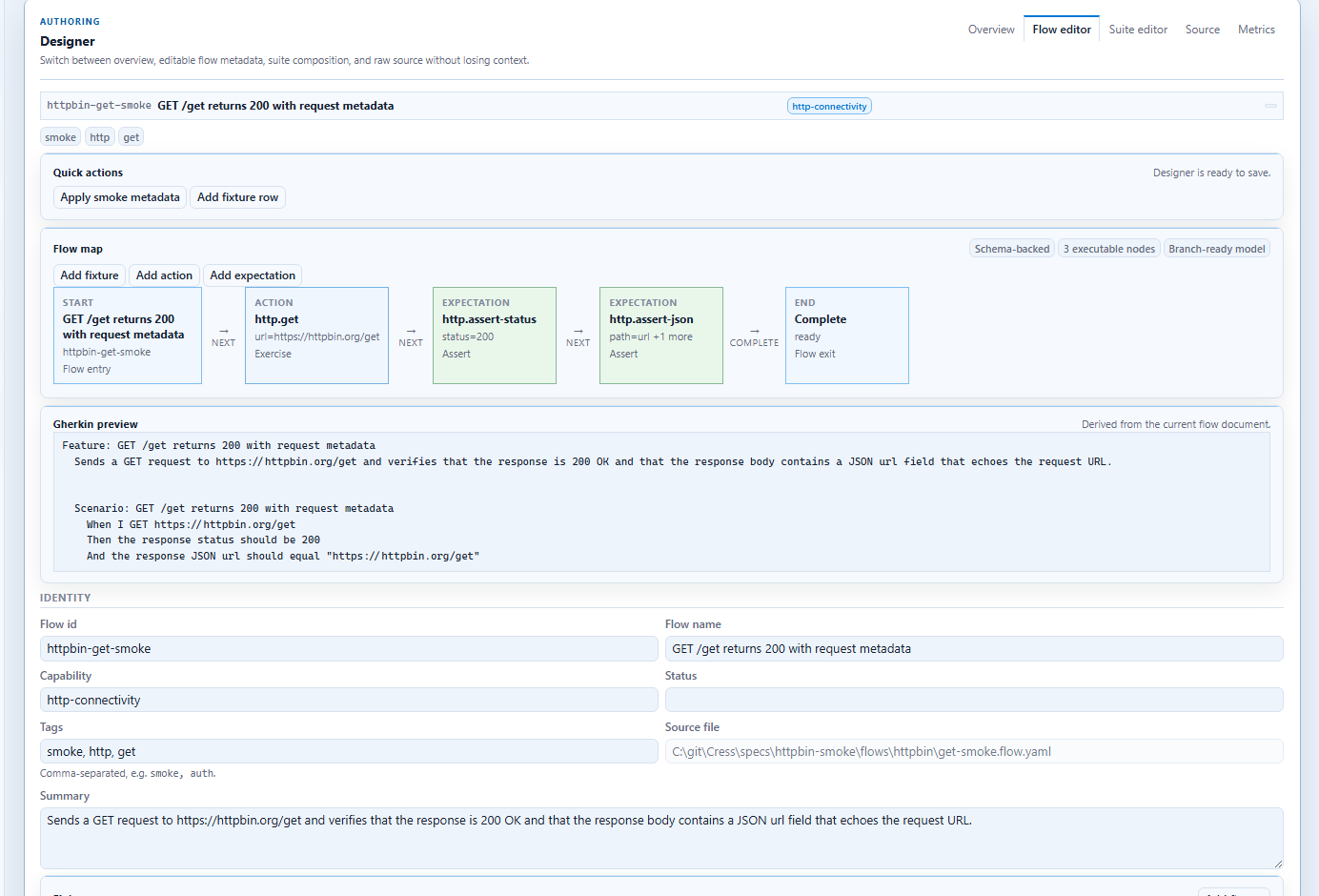
After editing the source, apply it back into the designer if needed:
7. Run and inspect evidence
dotnet run --project src\Cress.Cli\Cress.Cli.csproj -- validate demos\desktop-sample
dotnet run --project src\Cress.Cli\Cress.Cli.csproj -- run demos\desktop-sample --profile local --report html,json
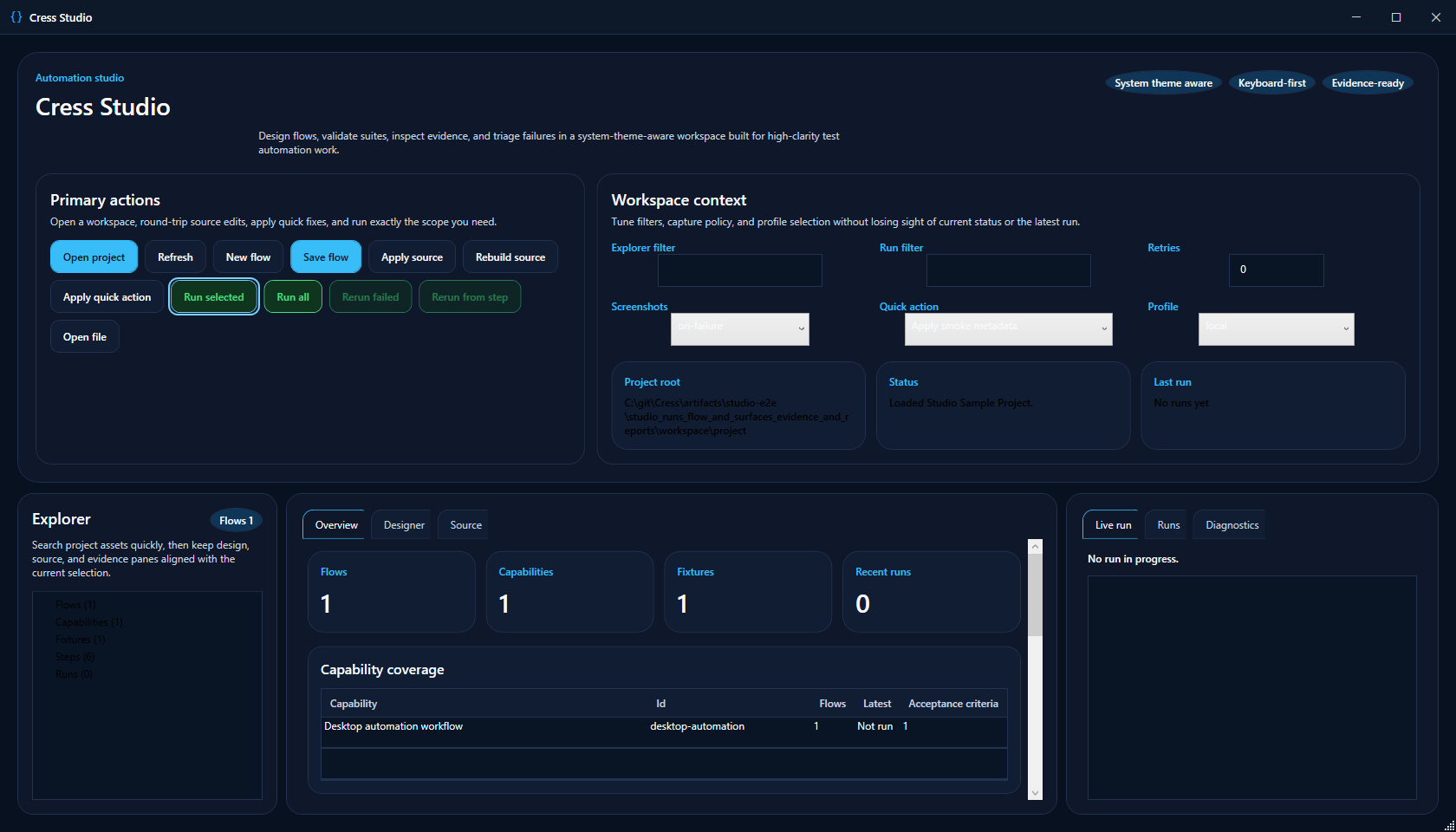
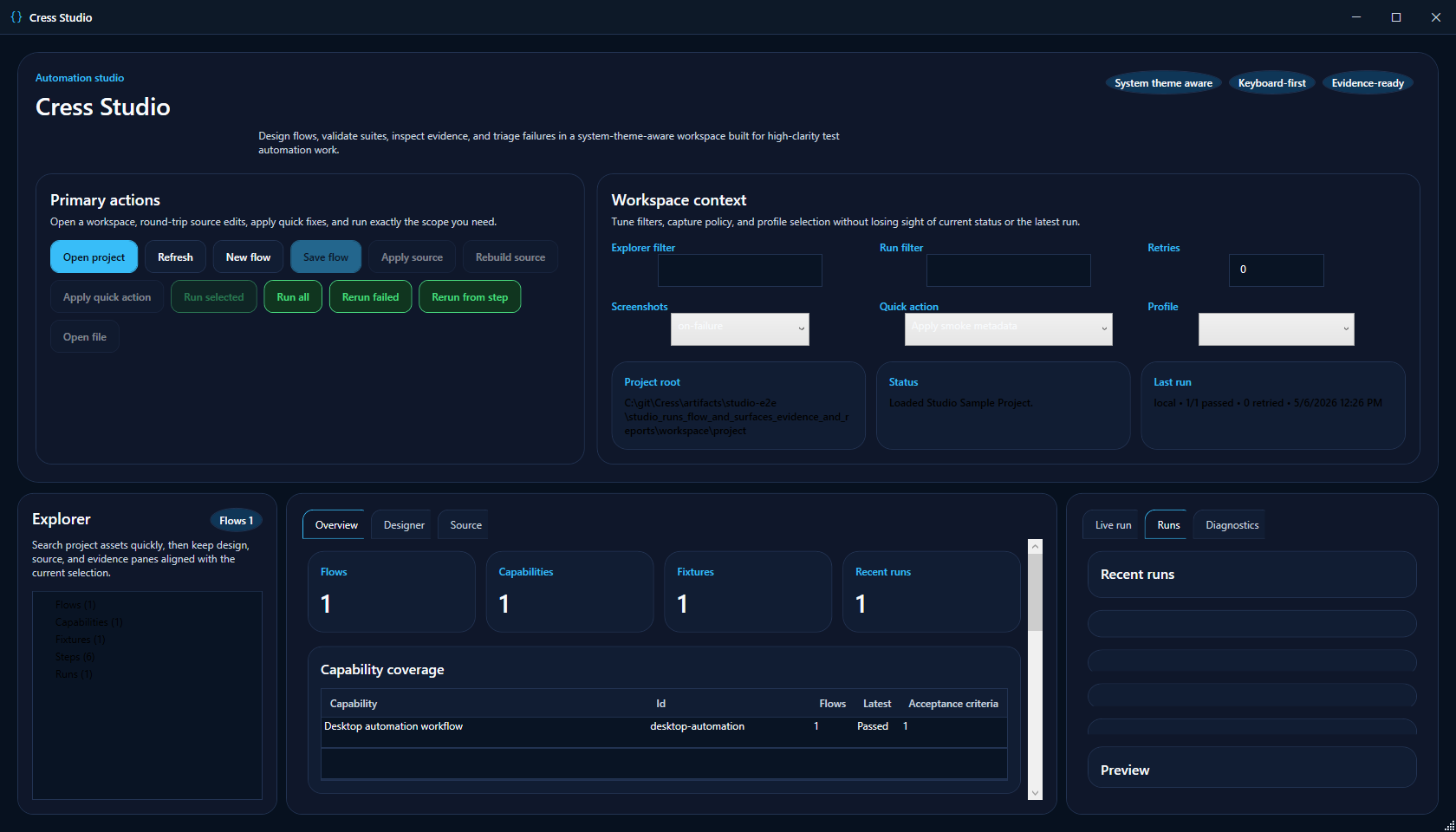
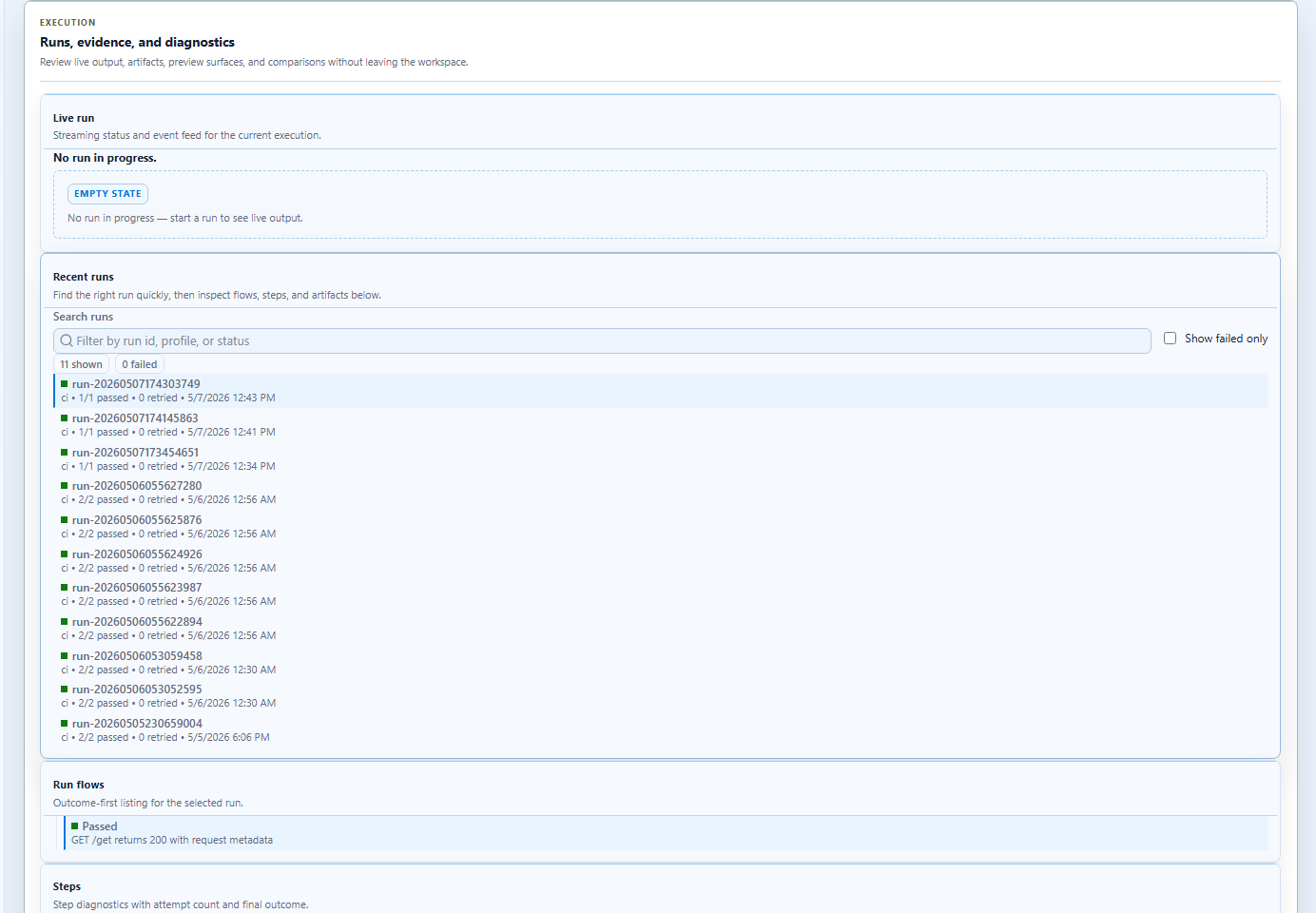
Review the run output:
8. Make the flow durable
For desktop automation, the biggest reliability gains come from:
- stable
AutomationIdvalues surfaced through#AutomationIdselectors - deterministic launch and test data setup
- predictable dialogs and window titles
- screenshots and full evidence capture during early authoring